Adding New Vendors
To create new vendor accounts, select the Vendor List functionality. An admin user can create new vendors
from the system by either adding or importing new vendors. The user can also approve, create accounts, edit or
delete a vendor.
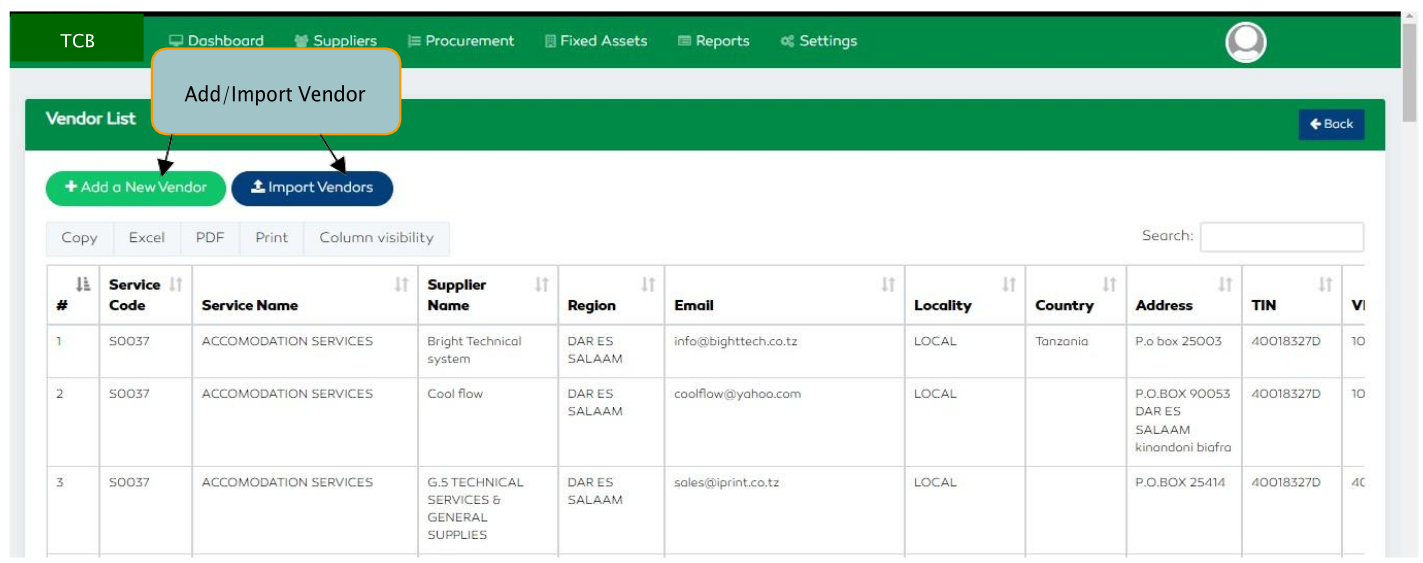
Figure 161: Importing /Adding Vendors
Adding New Vendors Functionality
To add new vendors, select the Add New Vendor button.
- Enter the supplier Name
- Specify whether the supplier is active or inactive by checking or unchecking the box respectively.
- Select the vendor’s locality. For a local vendor, select the region. For an international vendor, select the country.
- Select the service to be provided by the vendor.
- Enter the vendor’s address
- Enter the vendor’s email address
- Enter the vendor’s phone number
- Enter the vendors TIN & VRN
- Select the vendor's bank payment details and enter the bank account number.
- Click the
Savebutton to submit.

Figure 162: Adding a New Vendor
Importing Vendors
To import multiple lists of vendors to the system, select the Import Vendors functionality. On clicking the
feature, a guideline on the excel template to be uploaded will be displayed. In case of any wrong inputs in
contrast with the defined format, the upload will be rejected. The upload format details are as explained
below:
Upload CSV file with first row having the columns: [eprocurement_account, name, country, region, services, address, email, phone, tin, vrn, bank_name, bank_branch_code, bank_account_number]
Note: All fields apart from region, bank_name, bank_branch_code and bank_account_number are
mandatory
Supplier locality are either LOCAL or INTERNATIONAL. In case for INTERNATIONAL leave region empty For
eprocurement_account put 1 and eprocurement account will be created automatically. Leave empty and
account won't be created automatically.
For bank_name Enter the bank name. Existing banks on the system are NMB BANK, CRDB BANK, EXIM BANK, DTB BANK, FNB BANK, STANBIC BANK, NBC BANK, TCB BANK, ABSA BANK, PEOPLES BANK OF ZANZIBAR, Equity Bank, KCB- Bank, BARCLAYS BANK TANZANIA.
After filling the required details, select the Choose File functionality and select your file and click the
Import button to upload.
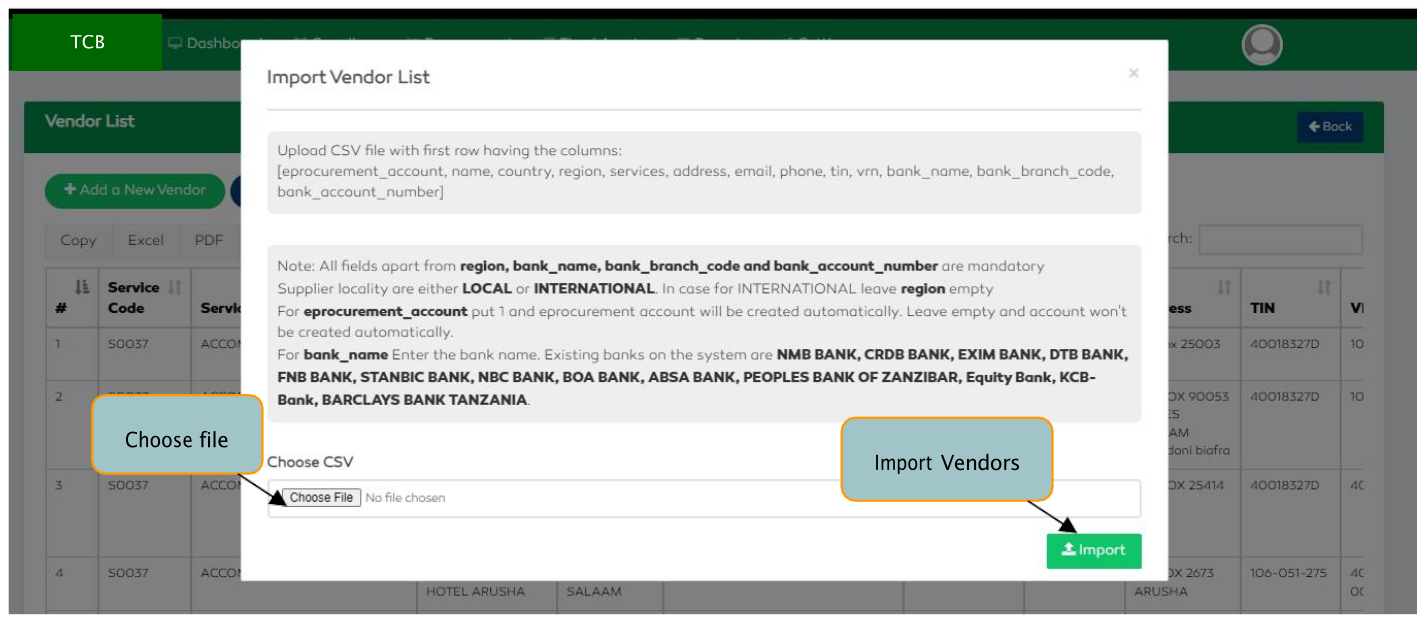
Figure 163: Importing Vendors