Evaluating A Supplier
To evaluate a supplier,
- Select the
Viewfunctionality. - On each of the five sections displayed, a user is capable of viewing or awarding scores to the supplier’s details provided.
- To view the details of each section, click the
Viewbutton present on each section. - An evaluator has to make sure that the provided details on each section meet the required criteria.
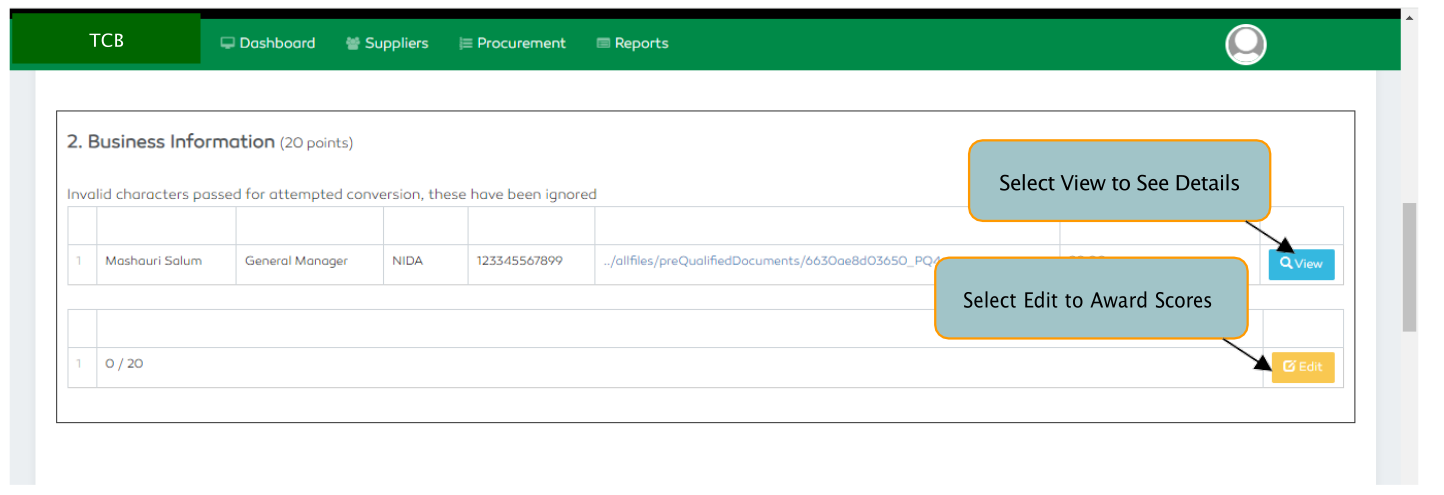
Figure 157: Evaluating Suppliers
Awarding Scores
To award scores,
- Select the
Editfunctionality present on each section. - On Selecting the
Editfeature, a section to award the sores will be displayed. A user has to award a score to that specific pre-qualification section. - The awarded score should be less than or equal to that section’s pre-defined total score. On each section, its total scores are displayed on top of the section.
- After awarding the scores, select the
Savefunctionality to submit orReturnfunctionality to discard. - Repeat the same actions until you complete all of the five sections. Always remember to save the information entered on each section.
- In the sixth section, add a comment or remark on your findings during the evaluation process in relation to the information submitted by the supplier. discard.
Submitting Pre-Qualification Results
Before the entire information on all sections is submitted, an evaluator is capable of editing the information he
needs to by clicking the Edit functionality on each section. Once the evaluation results are submitted, a user
will only be able to view the results.
To submit the results, select the Submit Evaluations button found at the bottom of the pre-qualification form.
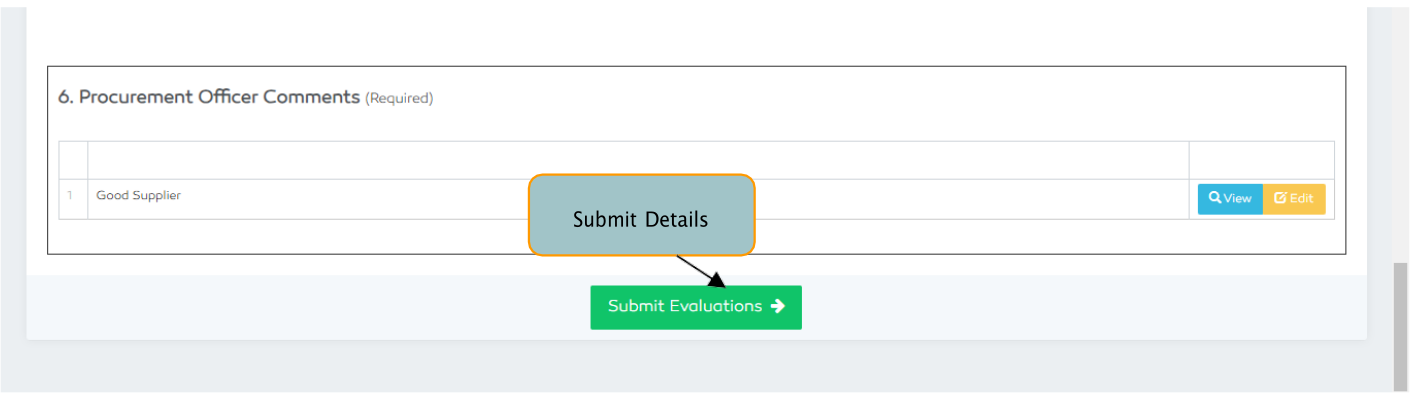
Figure 158: Submitting Pre-Qualification Results