Access Management Module
Access Management Module
The system allows the administrator to define the access rights & privileges of the different users of the system. Users are restricted to access or view sections within the system based on their predefined rights & privileges. The system administrator users can validate the provided details that the user filled in. Administrator users can register, view and edit user accounts, as well as to register, view and edit contracting Authority Institution/ organizations and their respective users.
The administrator user can register other Administrator users. The system allows the administrator user to deactivate organization/user, in effect forbidding such organization/user to authenticate or participate in e-Tendering process. The system is able to allow Administrator users to define the hierarchy of Approval Authority in different steps i.e. LPO/PO issuance. The system allows the possibility for administrator users to review and approve/reject registration requests; also, administrator users are able to change status at any time. This mechanism ensures that only those approved can submit bids.
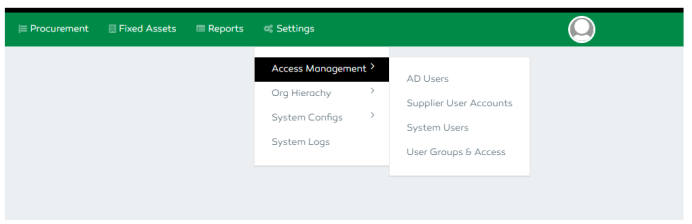
Defining User Groups and Access
To define User groups and privileged access within the system, go to the Settings Module, select the Access Management feature and click the User Groups & Access feature.
The feature allows an authorized user to add new groups and define them, edit or delete a group, manage users
and manage user access.
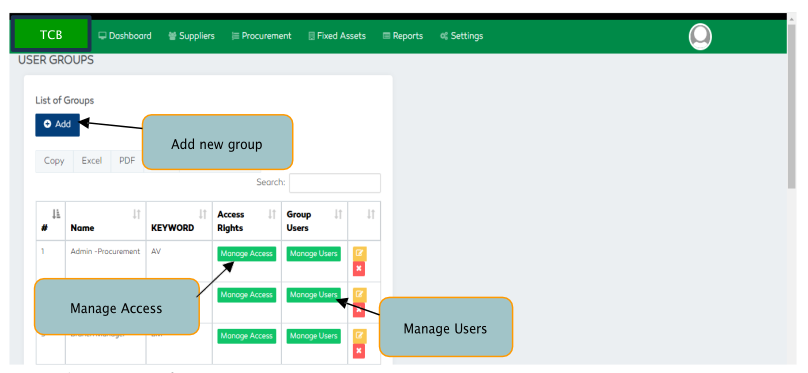
Adding a new User Group
- Click the “Add” button
- Enter the Group Name and Keyword. e.g. (Branch Manager, BM).
- Save and proceed.

Managing Access within the Groups.
An administrator or any authorized personnel is responsible for assigning or granting different access features to a certain group.
The administrator assigns each user access privileges in the form of roles with each role describing a position within the functions of the e-Procurement. A user, who has more than one role, will have the rights of all those roles. each role shall be defined with adequate privileges to carry out the responsibilities assigned to that role. Role privileges determine how data is accessed (via workflow, task and/or service), and the operations, which can be carried out. A user will be able to access the core functions of the system as per defined through his granted access and limits.
To manage access, click the Manage Access button, go to the function or role you want to grant and check the box. To deny access, uncheck the box.


Managing Users Within Groups
To manage users within a specific group, click the “Manage Users” button within the groups section. Select the user you want to add to that specific group and save. You can also delete a user from a group from this section.

System Users
The System Users functionality enables the administrator to add a new user, update existing users,
delete a user, enable or disable a user and reset user password.
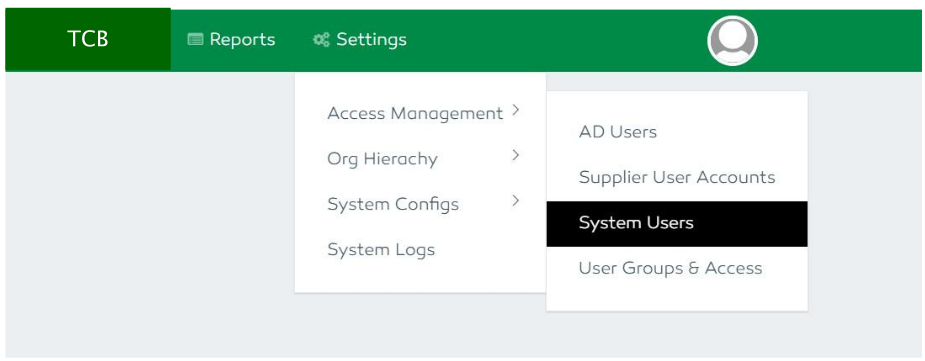
Adding a new user
Click the Add button functionality
Enter the first name, middle name, last name, email address, upload the signature, select the branch, user
type, department, expiry date and designation. Save and proceed.
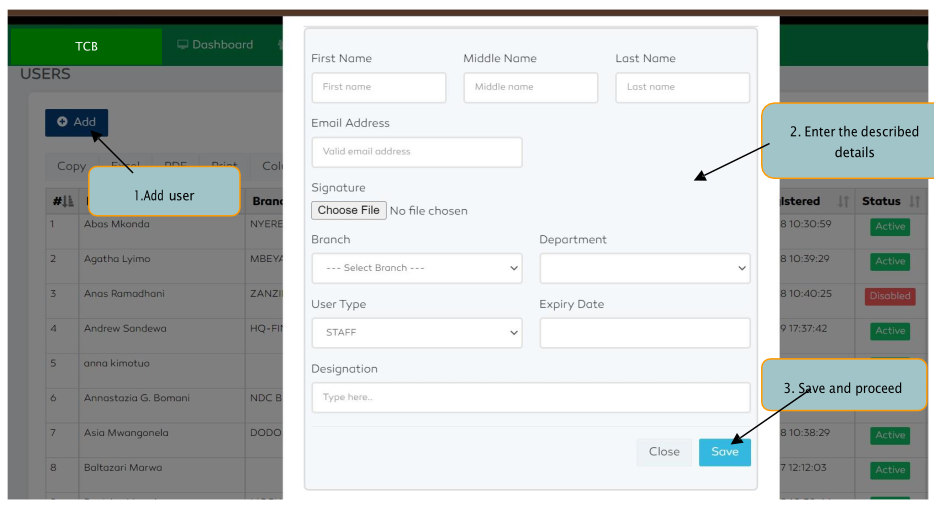
Managing Users

Supplier User Accounts
The system administrator user can validate the provided details that the supplier filled in during their registration.
All the registered suppliers appear under the Supplier User Accounts feature functionality. An administrator
user can enable or disable a supplier by clicking the Active or Disabled icons within the status column. For
editing the supplier details or resetting a password, click the three dots within the supplier specific details on the
far-right column. An option to Edit or Reset Password functionalities will be given.
To edit the details, click on the Edit feature, update the needed details and proceed.
To reset a password, click on the Reset Password functionality, approve to reset or cancel.
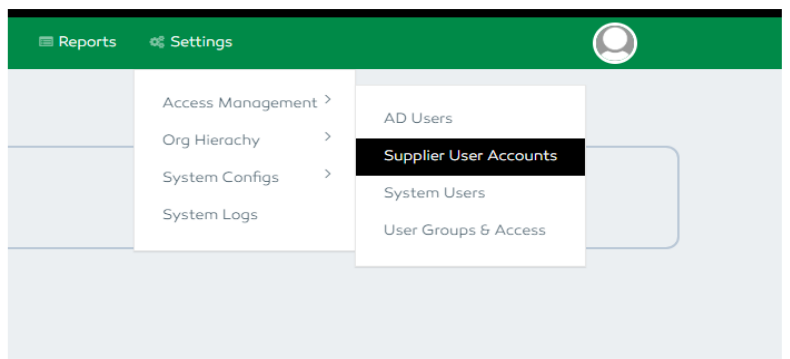

Figure 27: Managing Supplier users