Sworn Statement
The sworn statement entails the supplier’s statement, signature and stamp/seal.
Select the Add functionality then enter the statement and upload the sign and stamp/seal.

Figure 177: Sworn Statement
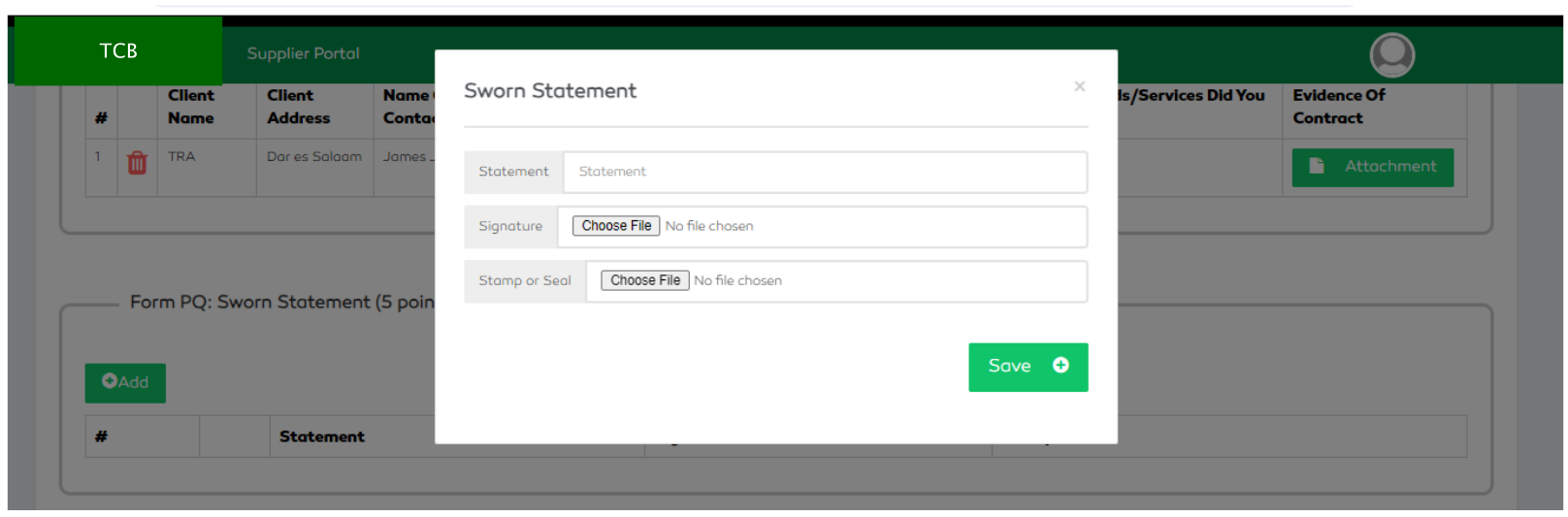
Figure 178: Adding a Sworn Statement
A user is capable of viewing attachments or deleting the information added by selecting the attachment
or Delete functionality respectively.
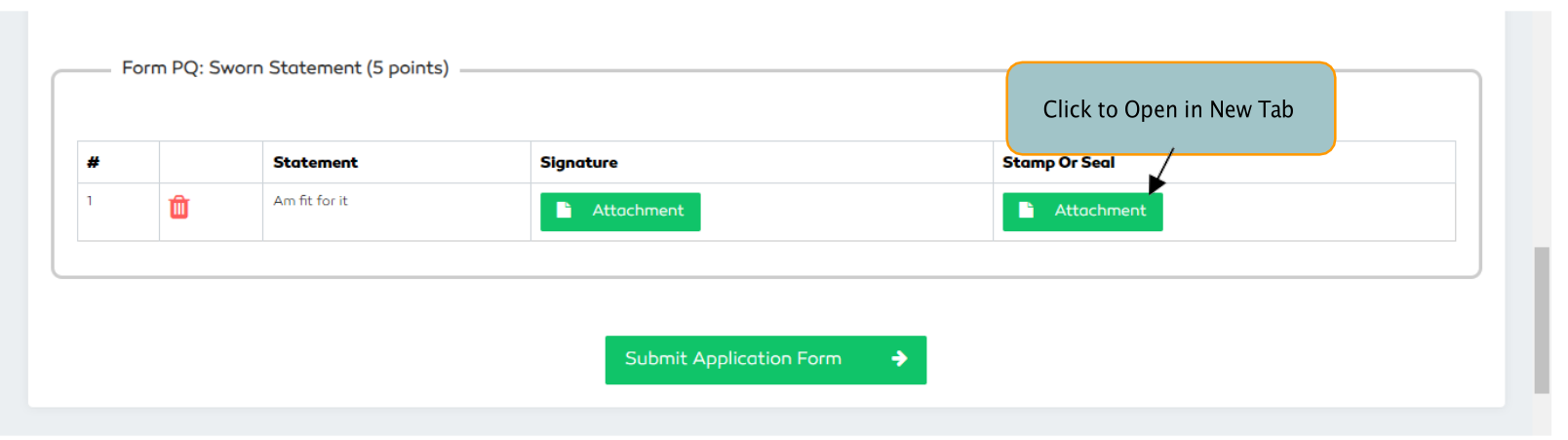
Figure 179: Managing a Sworn Statement
Submitting Pre-Qualification Application Information
After filling all the required details on all the five sections, a supplier will have to submit the information for
staff approval.
To submit the information, select the Submit Application Form functionality. A user will confirm the
submission and wait for staff approval.

Figure 180: Submitting a Supplier’s Pre-Qualification Details
On completion of the submission process, the supplier’s dashTCBrd will be displayed to the user having the details on Pre-Qualification Period, Application Status and Pre-Evaluation Status. A functionality to view the pre- qualification details is also provided.