Annual Procurements Items
The annual procurement items are filled by the administrator user. An administrator is capable of adding a new
item and editing or deleting an existing procurement item from the Annual Procurement Items functionality.

Figure 30: Annual Procurement Settings
New procurement items can be added onto the list depending on the procurement nature which the item
falls in. That could be CAPEX, OPEX or EXCEPTIONAL.
To add a new procurement item, you first need to specify the procurement nature of the item, you then have to
create the item category by clicking the “Add Item” functionality on the far right at the top of the items list
within the specific procurement nature, enter the item’s category and its description and save to proceed.
On the items’ category, you can now add your specific items which fall under that category by clicking the plus
sign + functionality found at the far-right end within the categories raw. Enter the item name, description,
unit price and specify if it is VAT applied or not then save to proceed.
To edit the item, click the editing functionality at the far right of the item, update the item name,
description, unit price and VAT specification then save to proceed.
For deletion of an item, click the Delete functionality at the far right, approve or decline your deletion
process to proceed.
An administrator user is capable of switching years to view annual procurement items of other previous years. A
list of procurement items can also be copied from one year to another year having no items yet in order to ease
the whole process. In order to copy items from one year to another, select the year of your choice, click the
Switch Year functionality. After switching, select the year you want to copy the items from then click
“Copy Items” functionality to proceed.

Figure 31: Annual Procurement Items Illustration1

Figure 32: Annual Procurement Items Illustration2
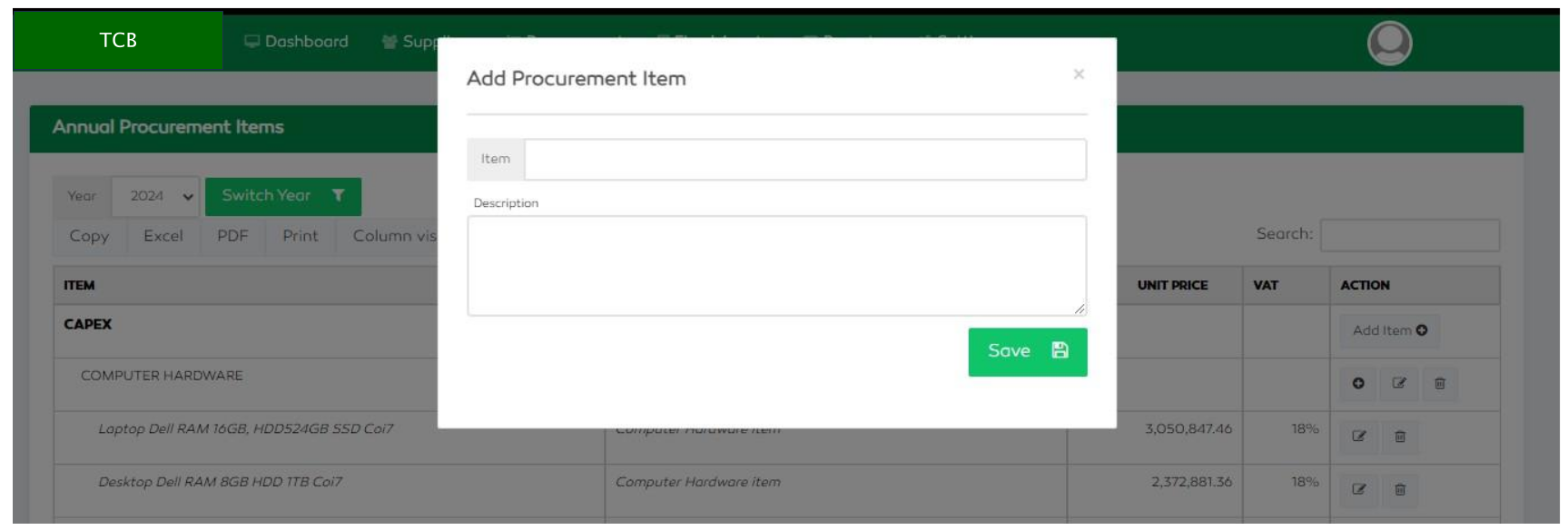
Figure 33: Adding a Procurement Item
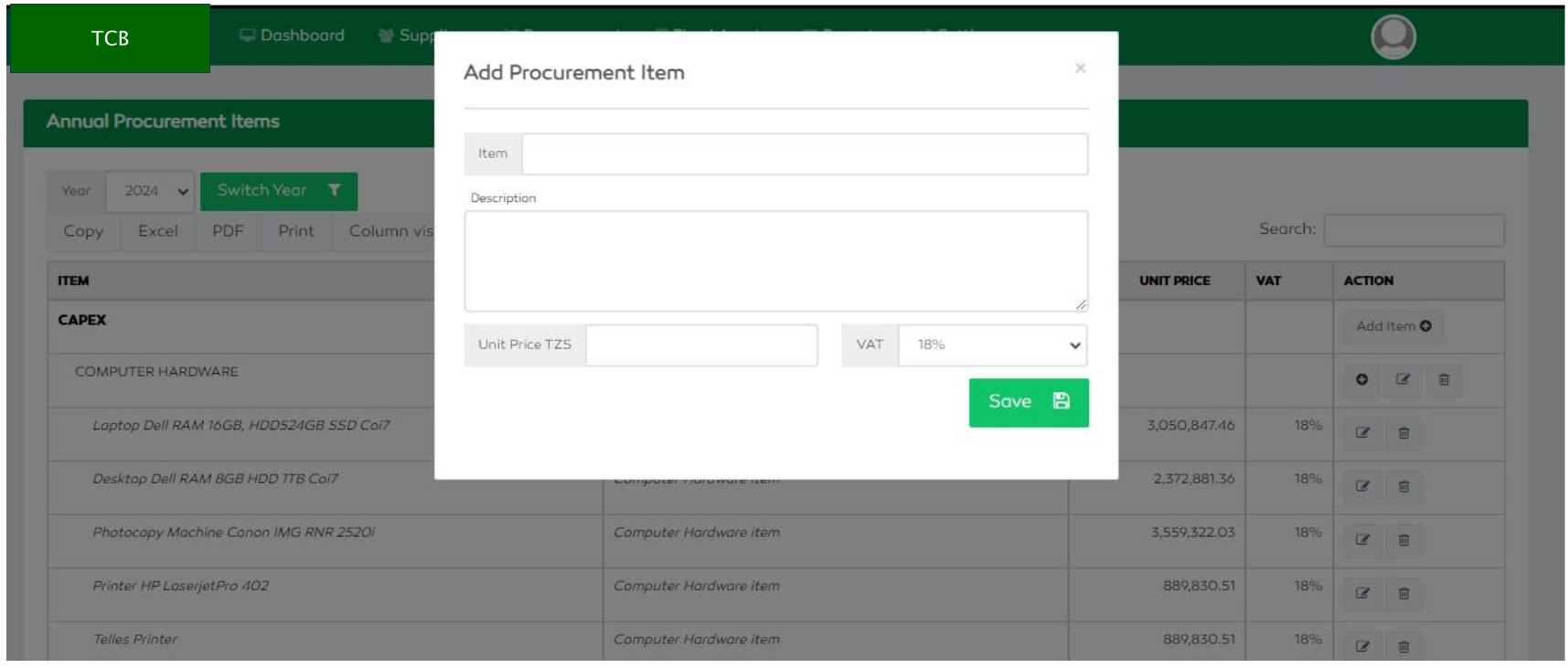
Figure 34: Adding a Procurement Item