Supplier Invoices Payment Approval
The Supplier Invoices - Payment Approval functionality enables the finance team to proceed with the final
payment approval before the CPU team can complete the payment. The payment approval section includes the
supplier details, items purchased and amounts to be incurred, tax / markup amounts, attachments, supplier
bank details, suspend account, payment instruction and account posting section. For international suppliers,
the invoice amount is grossed up by adding the VAT and WHT amounts into it.
The supplier and suspense accounts are all retrieved as they were saved from the invoice verification section. For non-TCB accounts, a suspense account will be displayed on the account posting section. For suppliers whose payments are done using TCB accounts, there specific selected TCB accounts will be displayed in the account posting section.
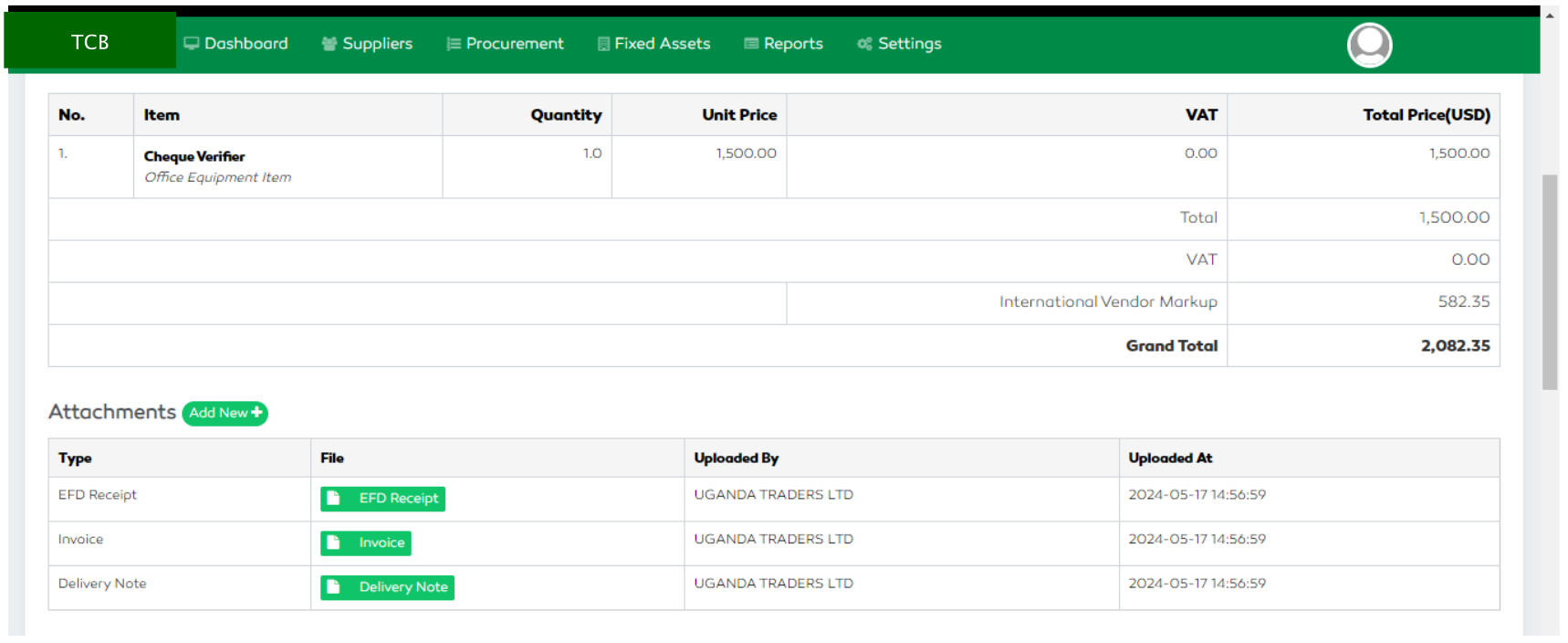
Figure 90: Invoice Details and Attachments for Payment Approval
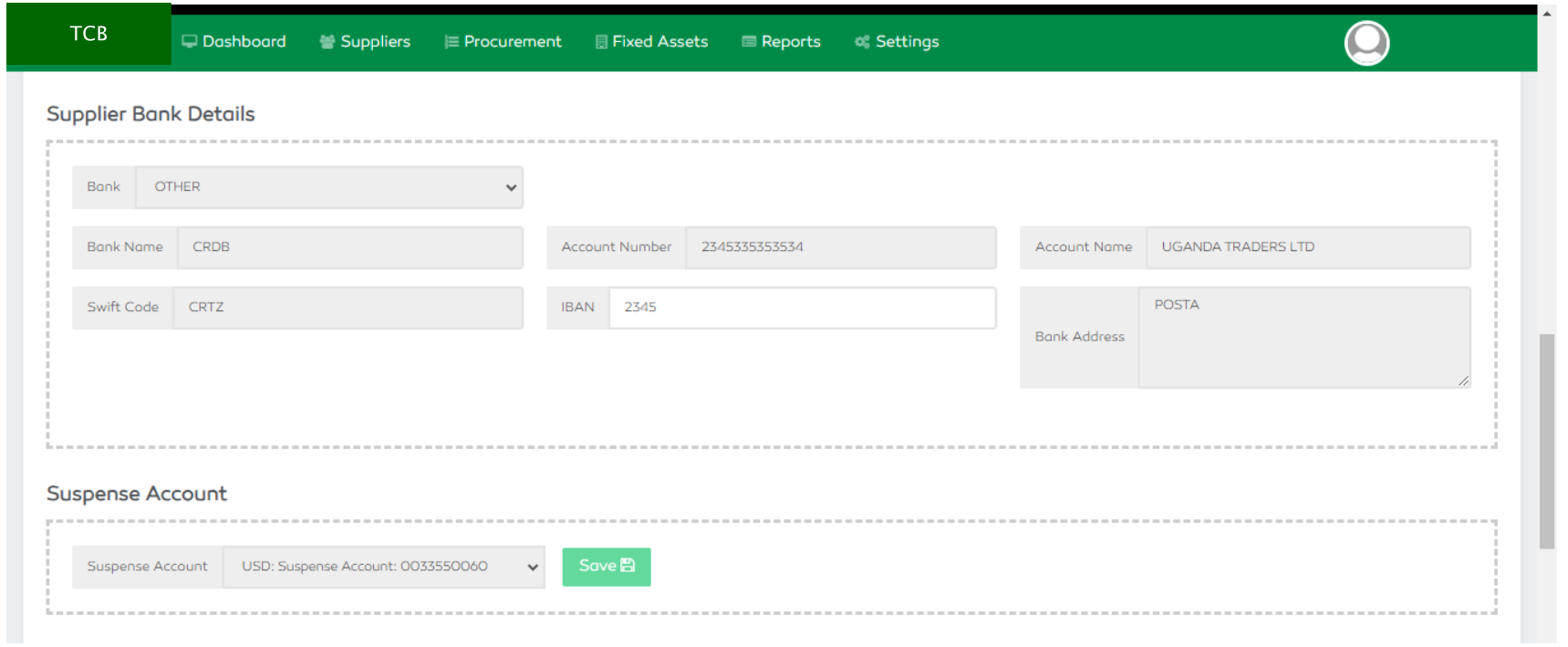
Figure 91: Bank Details for Payment Approval
Payment Instruction Section
For non-TZS currencies, a user will have to enter the exchange rate of the current payment period. The system will calculate and display the WHT amount, the VAT amount and the amount being deposited to the supplier. A user can edit the base amount in case it is different from the invoice amount.
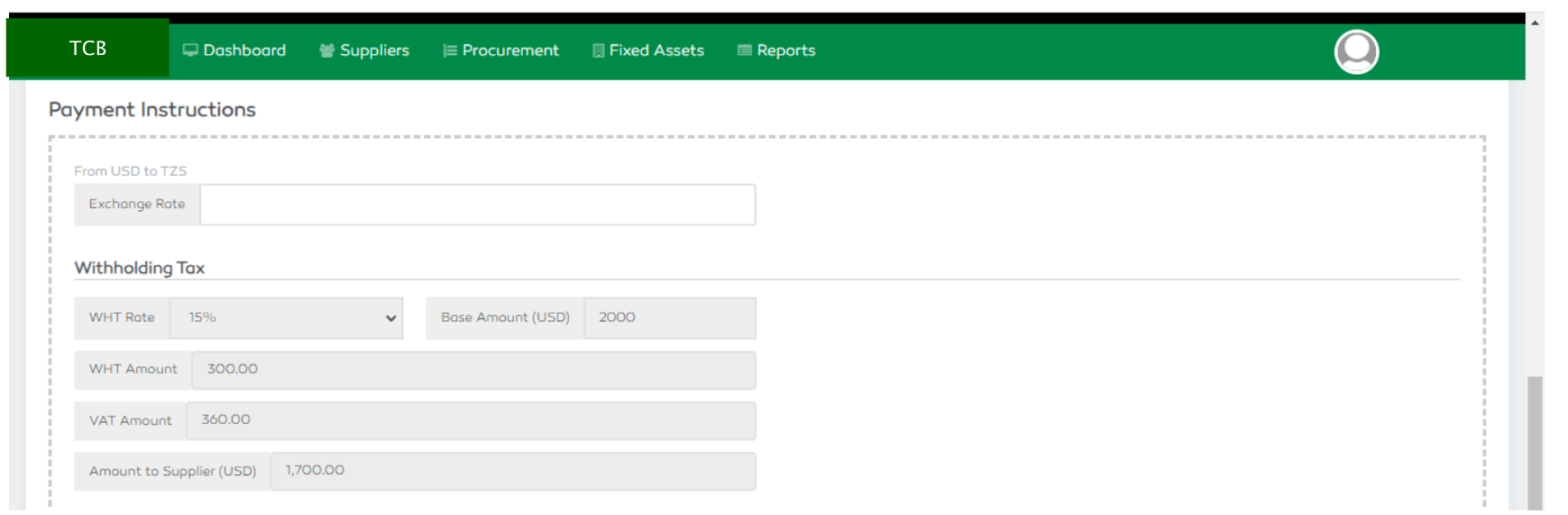
Figure 92: Payment Instruction Details
Account Posting Section
The account posting section enables a user to post the expense account, VAT account, WHT account and the vendor account or suspense account to be used during payment.
After selecting the specific accounts, select the Save Payment Instructions button to post the accounts.
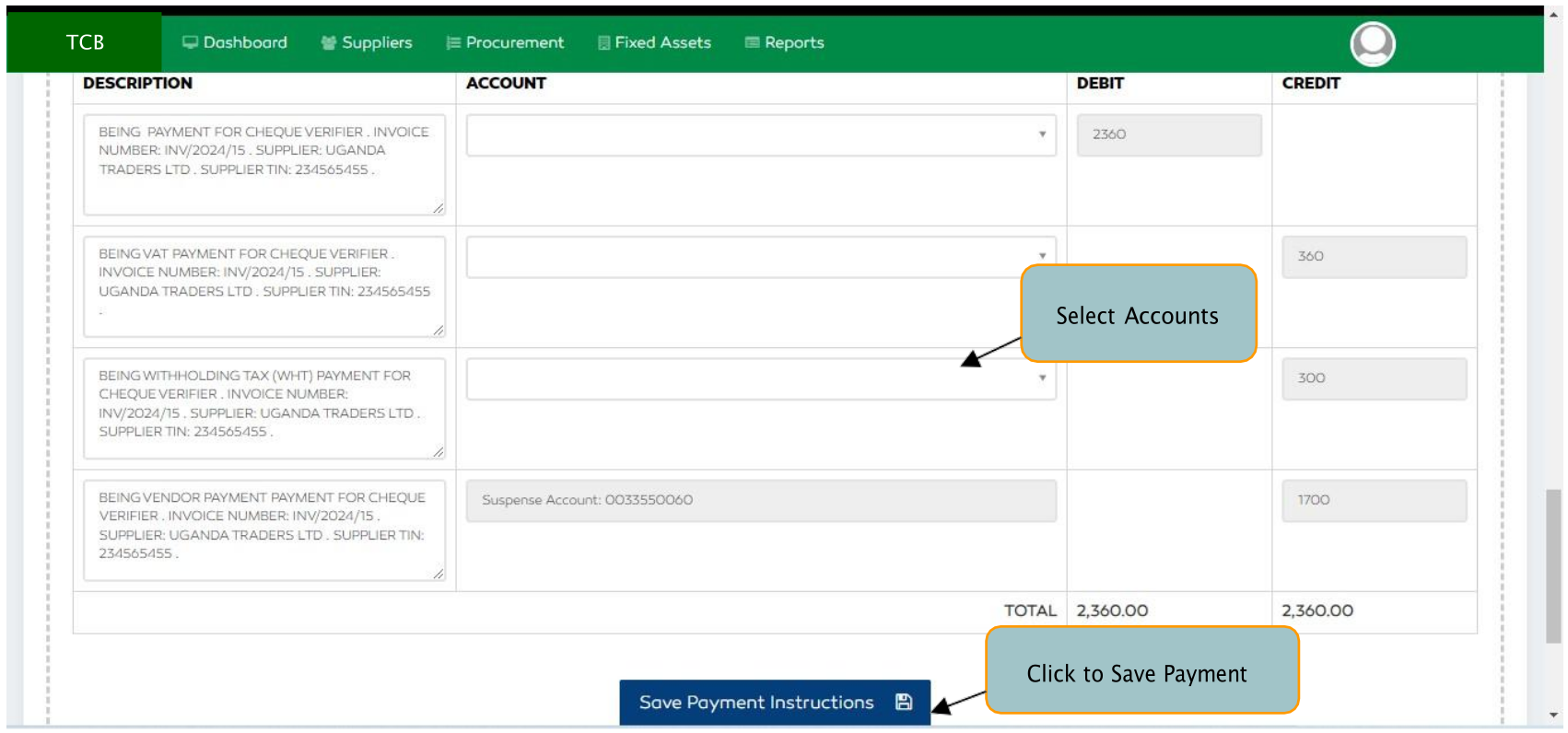
Figure 93: Account Posting Section Description
Paylist Section
The Paylist section helps the CPU staff to access the payment details posted by the finance team. A user is
capable of marking payments as Paid once the payment is done. The payment posted can also be exported as
an CSV file for any other bank use.
A user can view the payment details by selecting the start and end dates, the currency used and selecting the “Search” button to view the payment details.
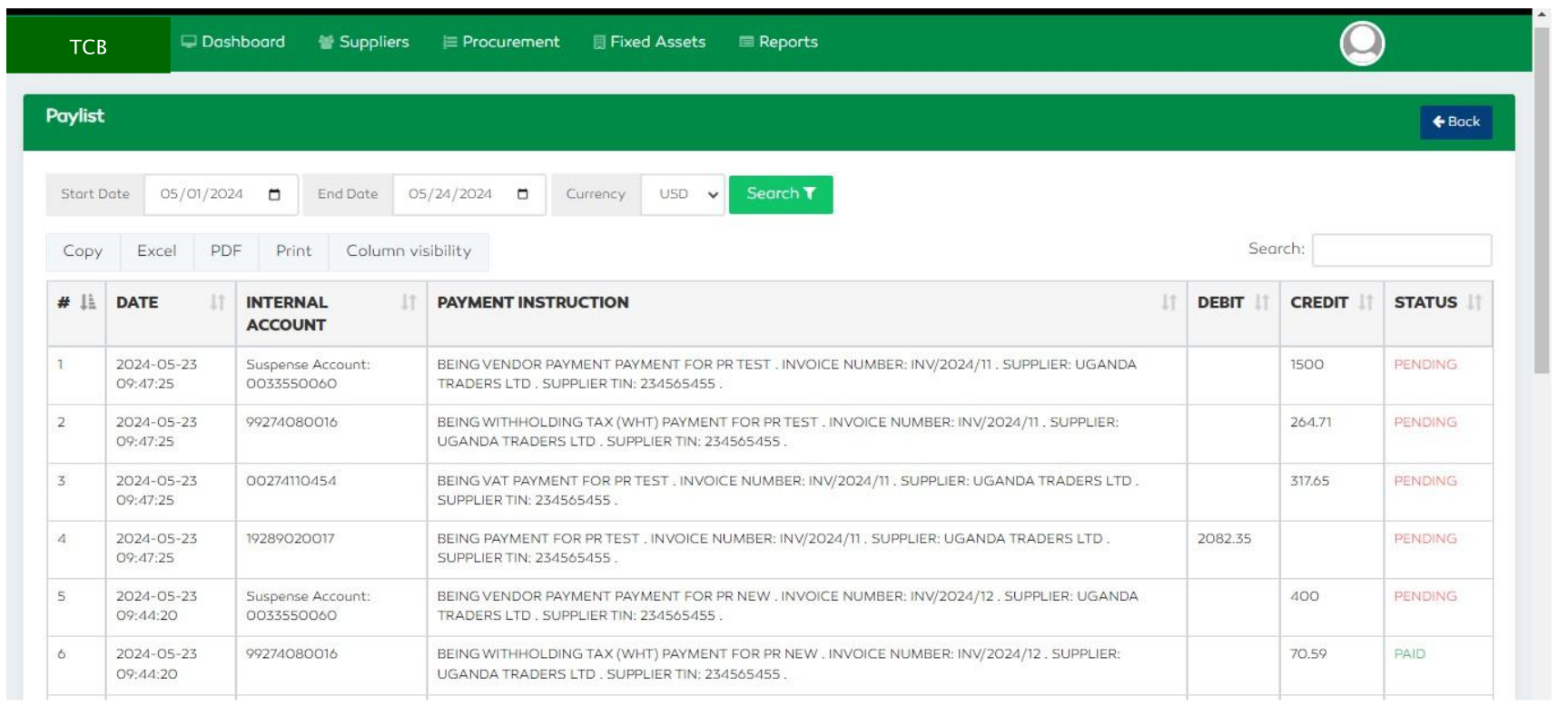
Figure 94: Paylist Section