Purchase Requests
The initiation process of purchasing goods can be accessed through the “Purchase Request” functionality. The user has to define whether the purchase is a direct purchase or a normal purchase request. A direct purchase won’t undergo the approval processes like a normal purchase request does.
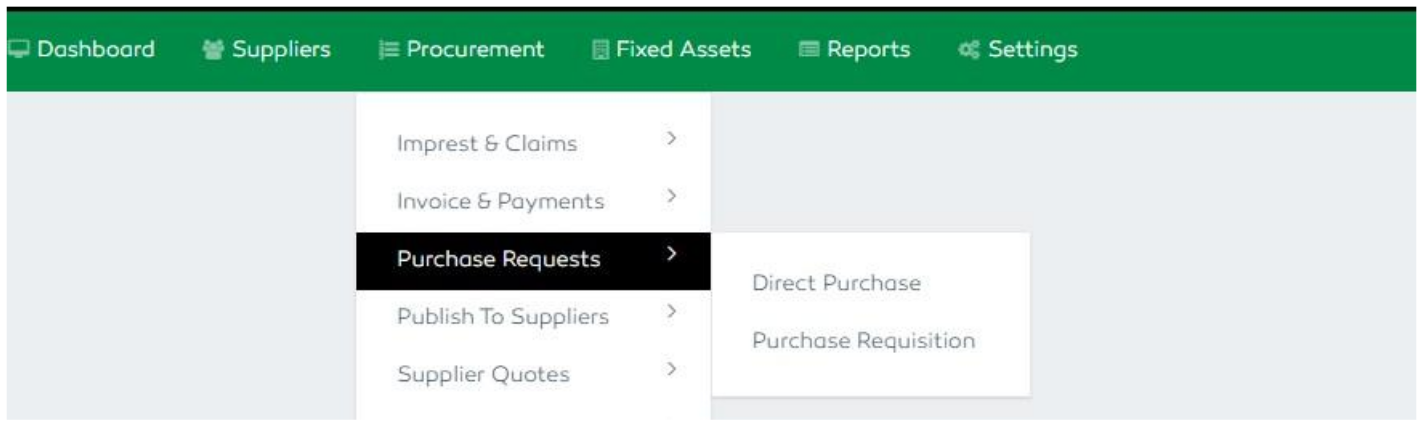
Figure 47: Purchase Request Module
Direct Purchase
A branch/unit can initiate their request, if it is a direct purchase, then the branch manager can approve the request and proceed with payment. Emergency requisitions also fall under the direct purchase category regardless of their price and won’t undergo the normal approval or evaluation processes. Requests not exceeding TZS 500,000 can also be approved by the branch manager as the final approver.
Creating a new Direct Purchase
To create a new direct purchase, click on the Create Direct Purchase button and fill the details
presented on the direct purchase form as explained below.
Enter the direct purchase description and select the specific item of your choice. Once you select the item,
other details such as the planned quantity, unit price and VAT specification will be automatically added into the
system since they were filled during the annual procurement items settings. When this is done,Add the quantity
of the item you are requesting for. The quantity should not exceed the planned quantity displayed from the
consolidated procurement plan. In case it exceeds the planned quantity, an error message will be displayed until
you enter a number less than or equal to the planned quantity. Add the item description if any then click the
Add Item button to add the item into the list. Once you click the button, the total amount to be incurred will
be automatically updated into the requested item list.
After filling all the required details, click the Create button at the bottom of your screen to save.
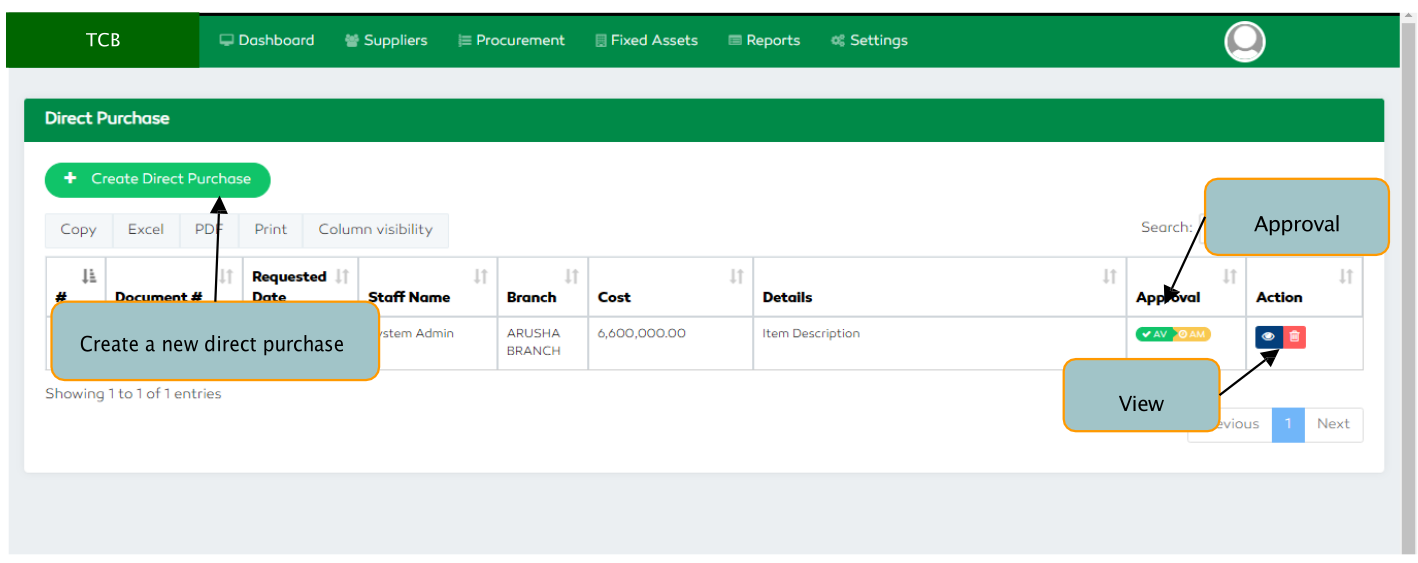
Figure 48: Create Direct Purchase
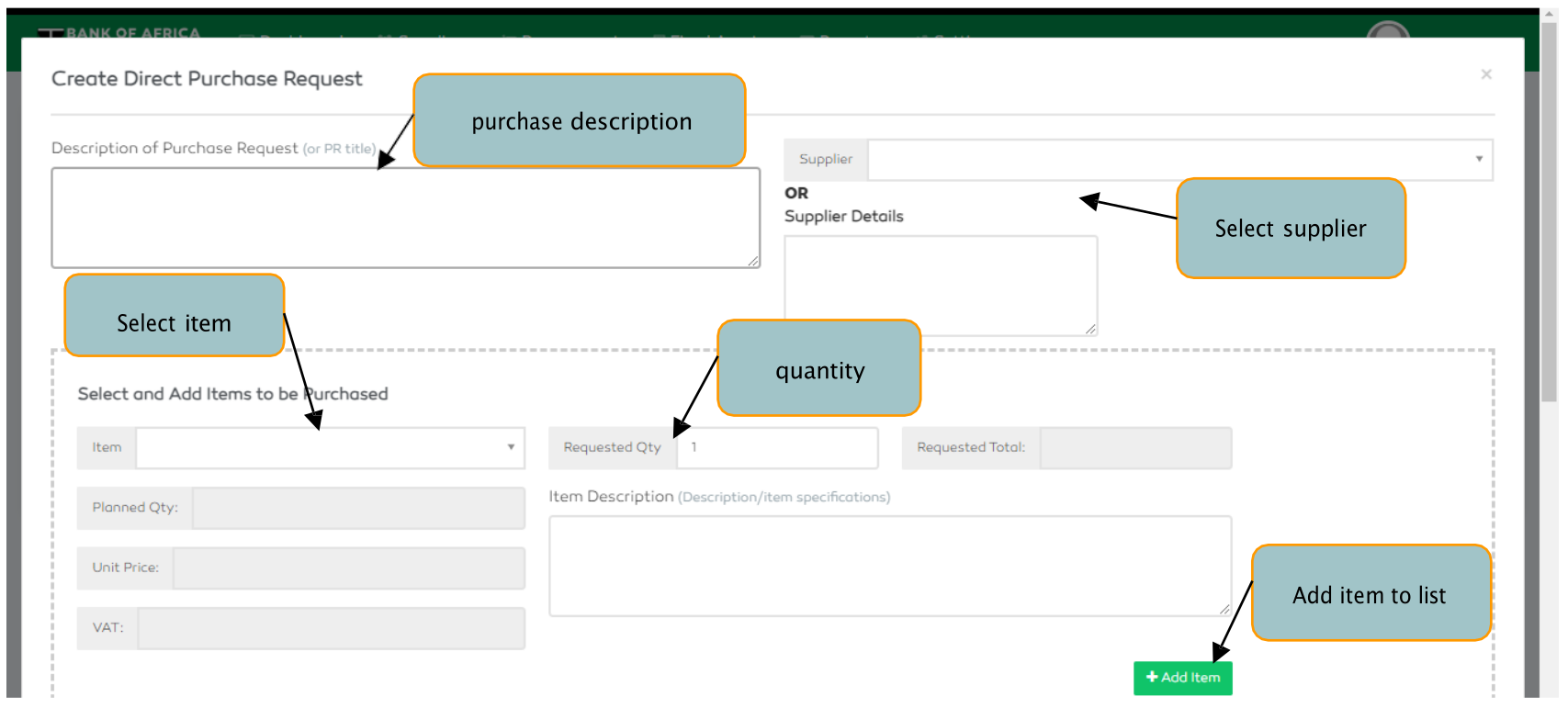
Figure 49: Creating a new Direct Purchase
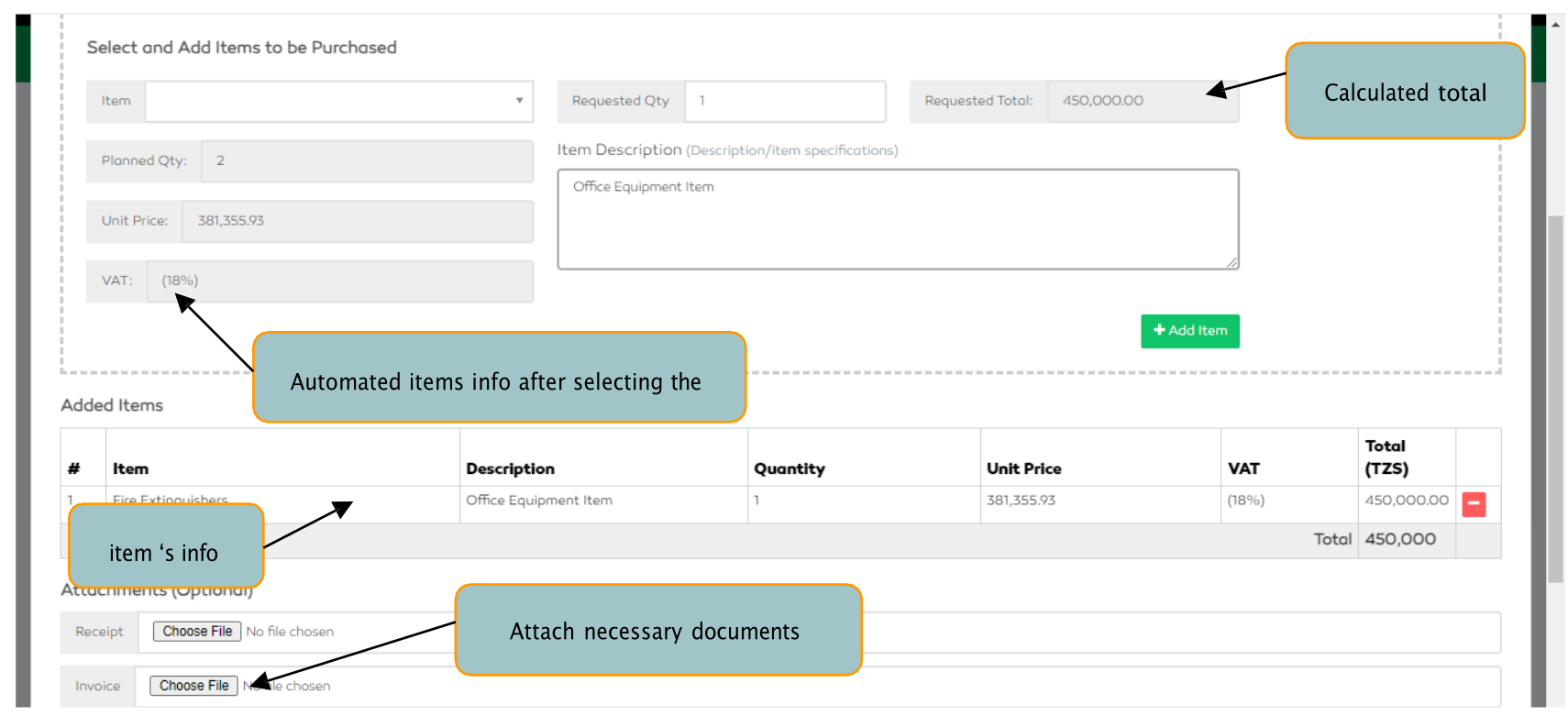
Figure 50: Creating a new Direct Purchase
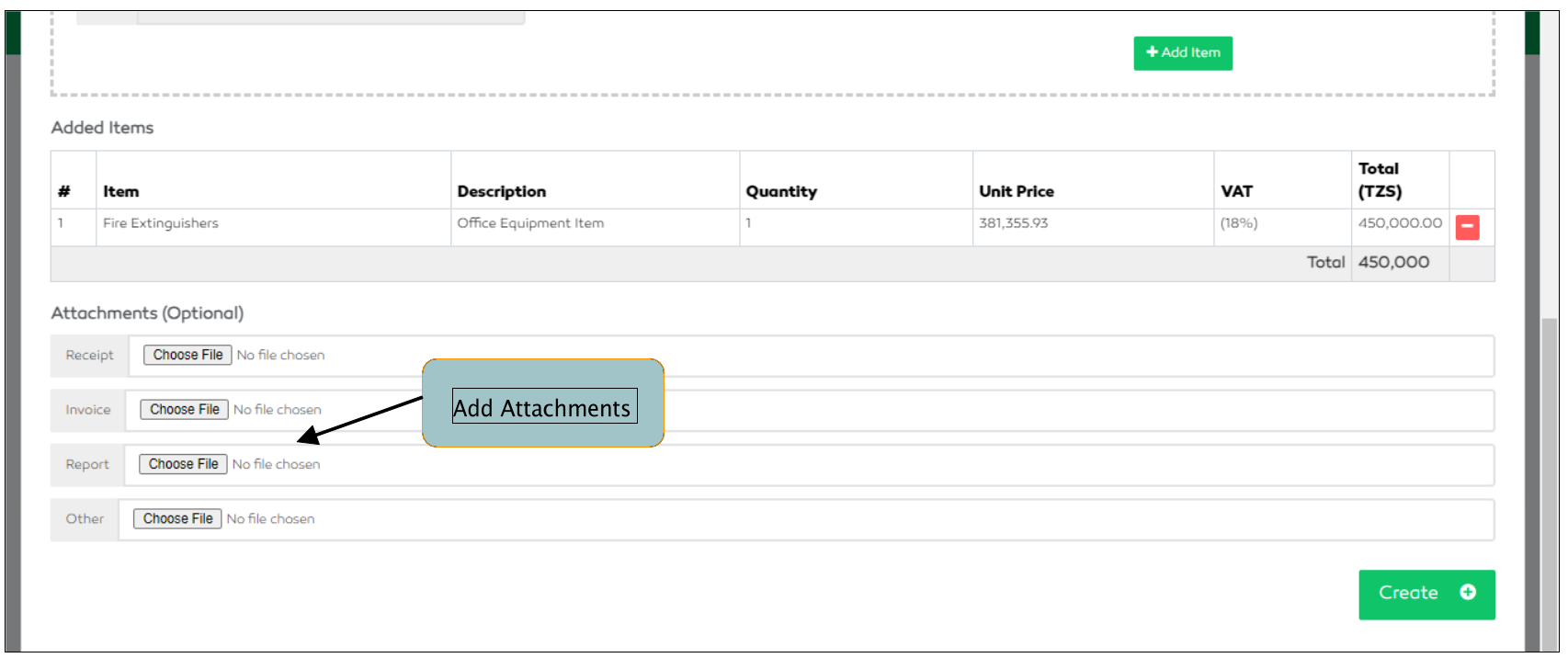
Figure 51: Creating a new Direct Purchase
Normal Purchase Request
A normal purchase request undergoes several approvals, evaluation and tendering processes until its completion. The inputter will have to describe the item or service to be purchased, select the specific item from the drop-down list and specify the quantity (The specified quantity should not exceed the planned quantity displayed). After selecting the item, all other details such as, planned quantity, unit price and VAT specification will be automatically added into the item list. As soon as the item is added to the list, the total amount to be incurred will be automatically included into the list.
A user can view a list of purchase requests submitted. A user declared as an approver can also view the purchase request and approve or decline it.
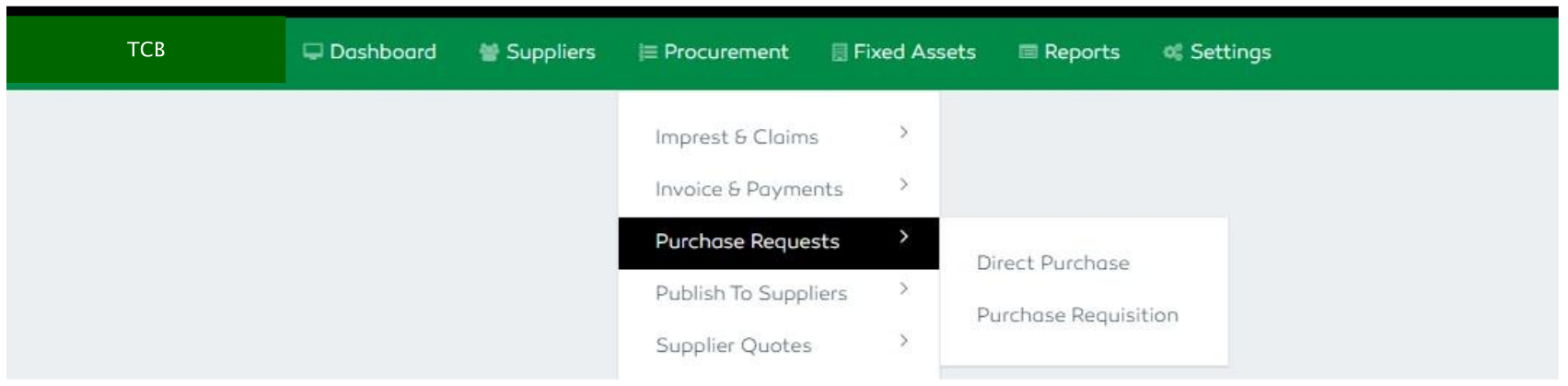
Figure 52: Normal Purchase Request Module
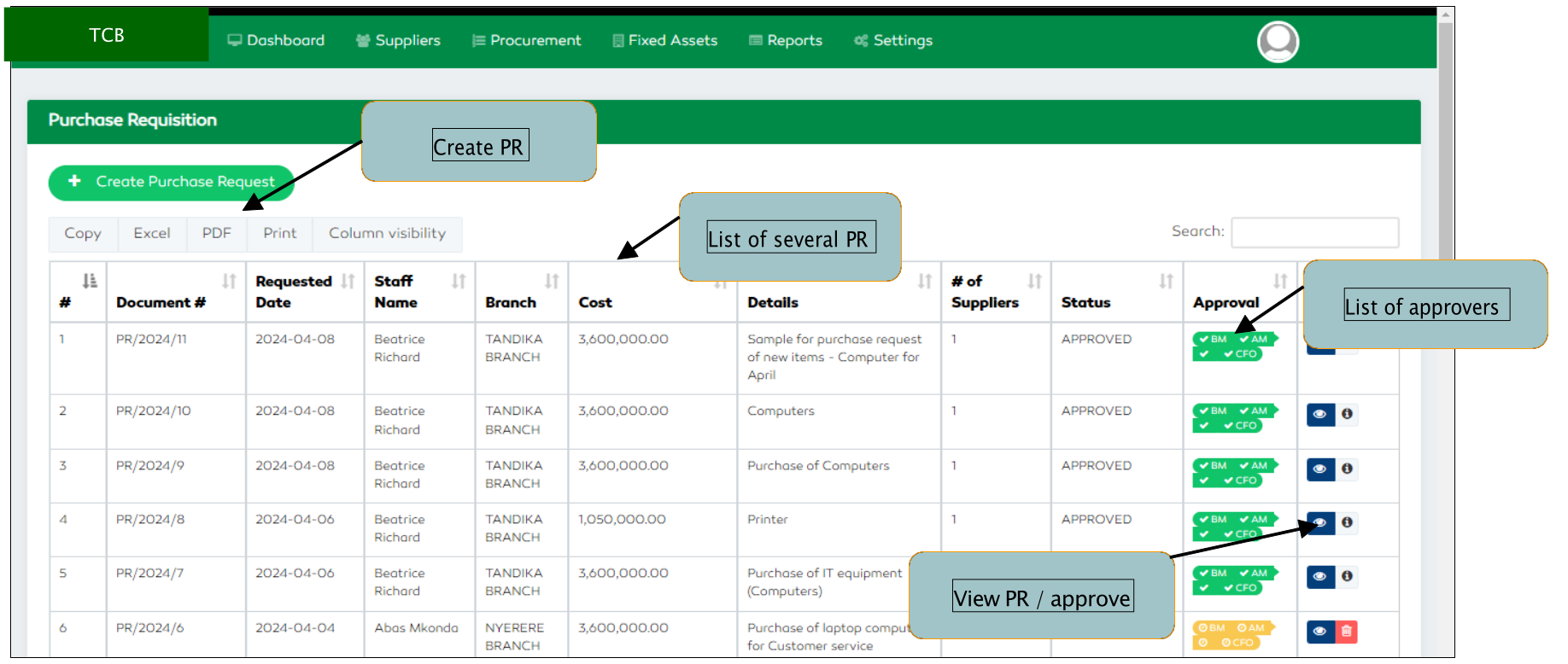
Figure 53: Normal Purchase Request Features
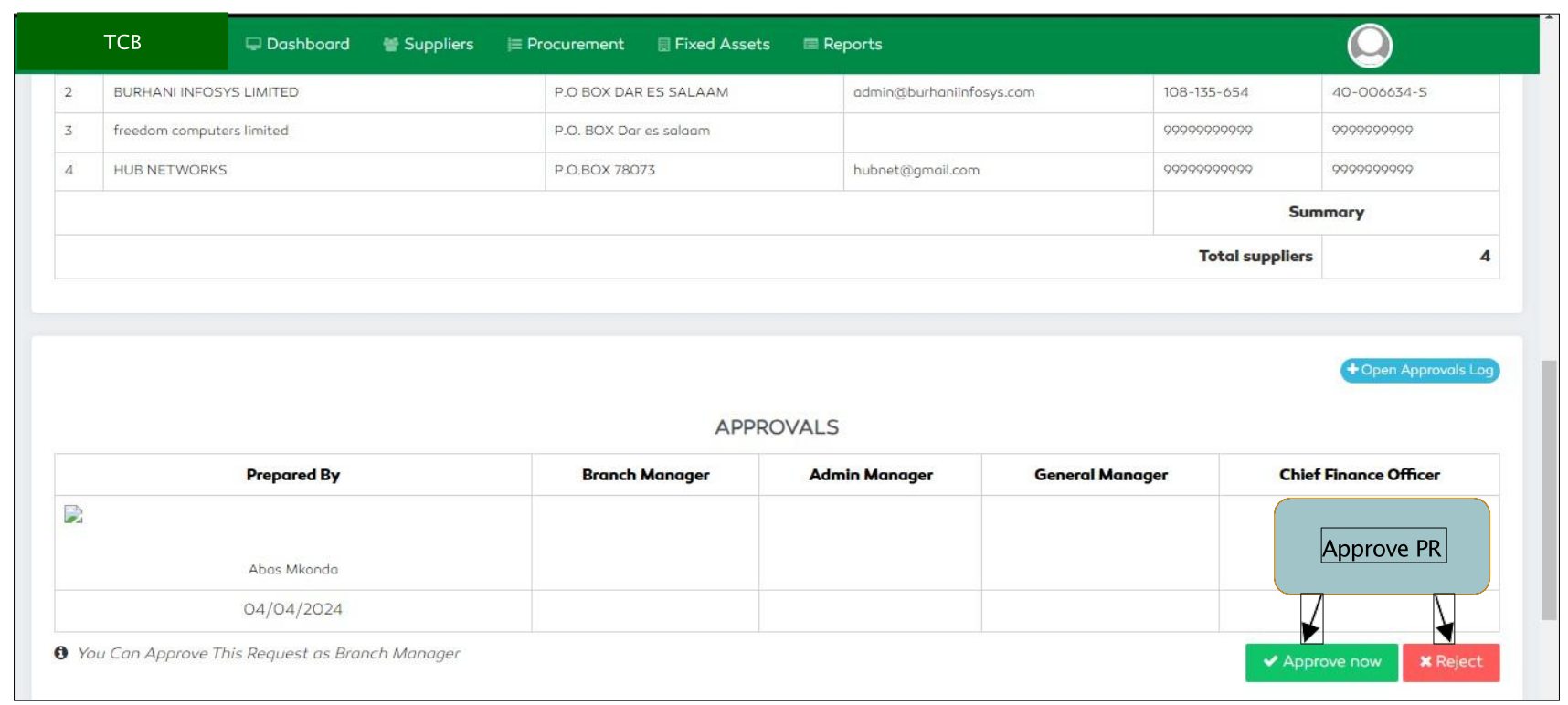
Figure 54: Approving Purchase Request