Contract Management
On completion of the evaluation process and awarding a winner, an LPO or/and a Contract will be created or
awarded to the bid winner. LPO and Contracts can be accessed from the Procurement Contracting functionality
in the procurement’s module.
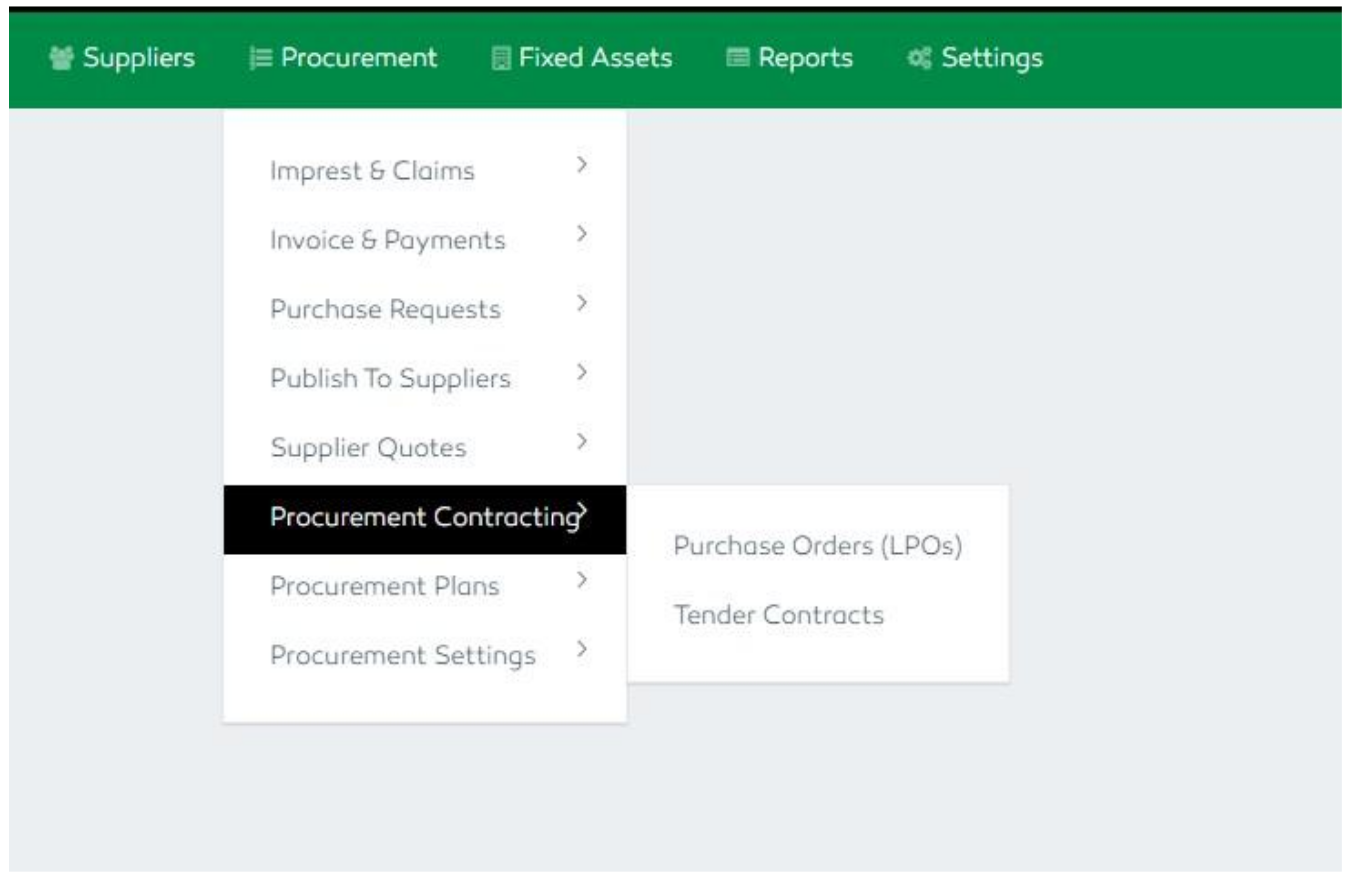
Figure 72: Procurement Contracting Features
Generating an LPO
As soon as a winner is selected from the evaluated supplier quotations, the system automatically generates an LPO.
The prior activity of clicking the Mark as Winner & Generate LPO functionality from the evaluation section
on Received Quotations in Supplier Quotes feature adds the LPO to the purchase order section
automatically.
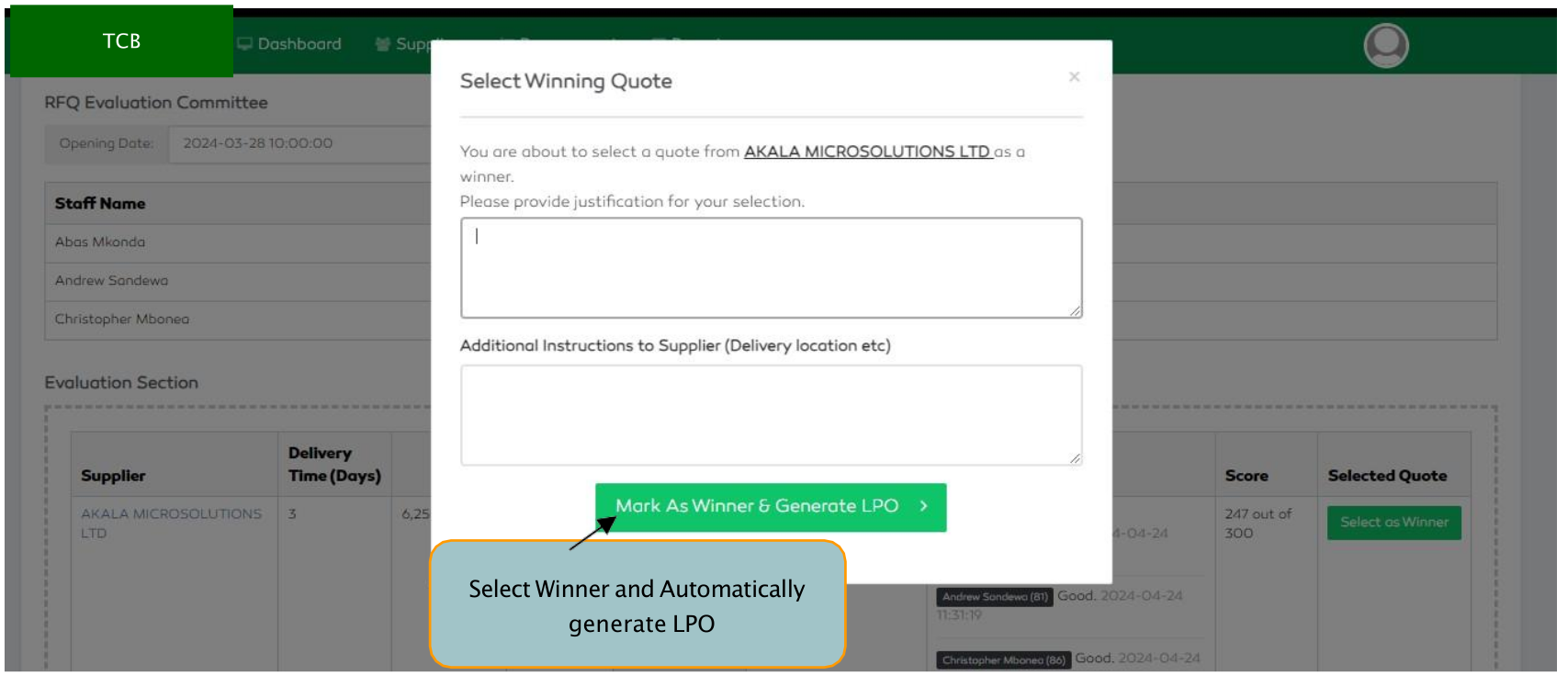
Figure 73: Generate LPO
A list of all generated LPOs will be displayed after selecting the Purchase Order (LPOs) functionality. Users
are capable of searching an LPO by selecting a time frame and supplier of their choice, viewing LPO details
including the approval status and accessing a functionality to approve a specific LPO if a user is among the
approvers.
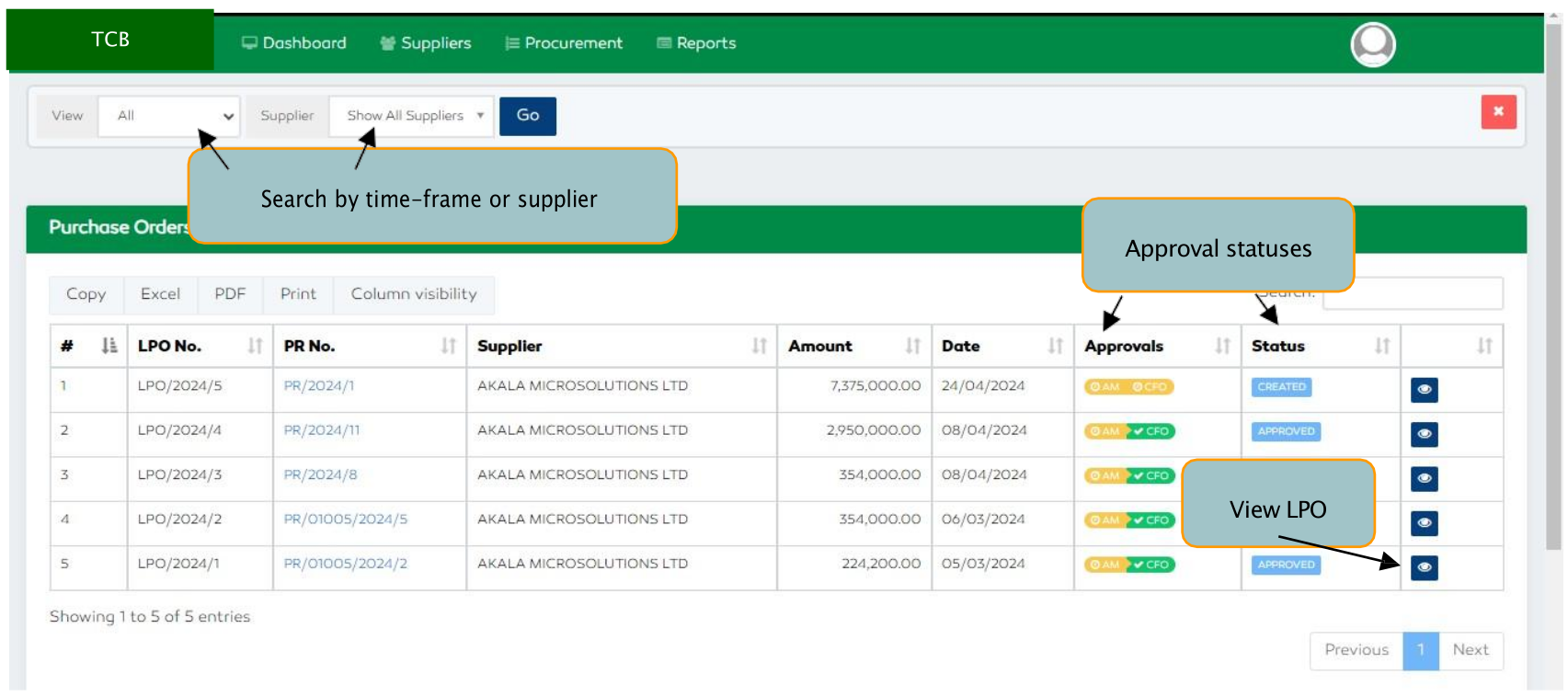
Figure 74: Purchase Order Features
Approving an LPO
To approve an LPO, a user with the role clicks the eye functionality at the far right of the LPOs’ list. The
purchase order details, Supplier details, Items details and the approval logs and functionality will be displayed
to the user.
A user will select the Approve now functionality to approve or Reject functionality to reject an LPO.
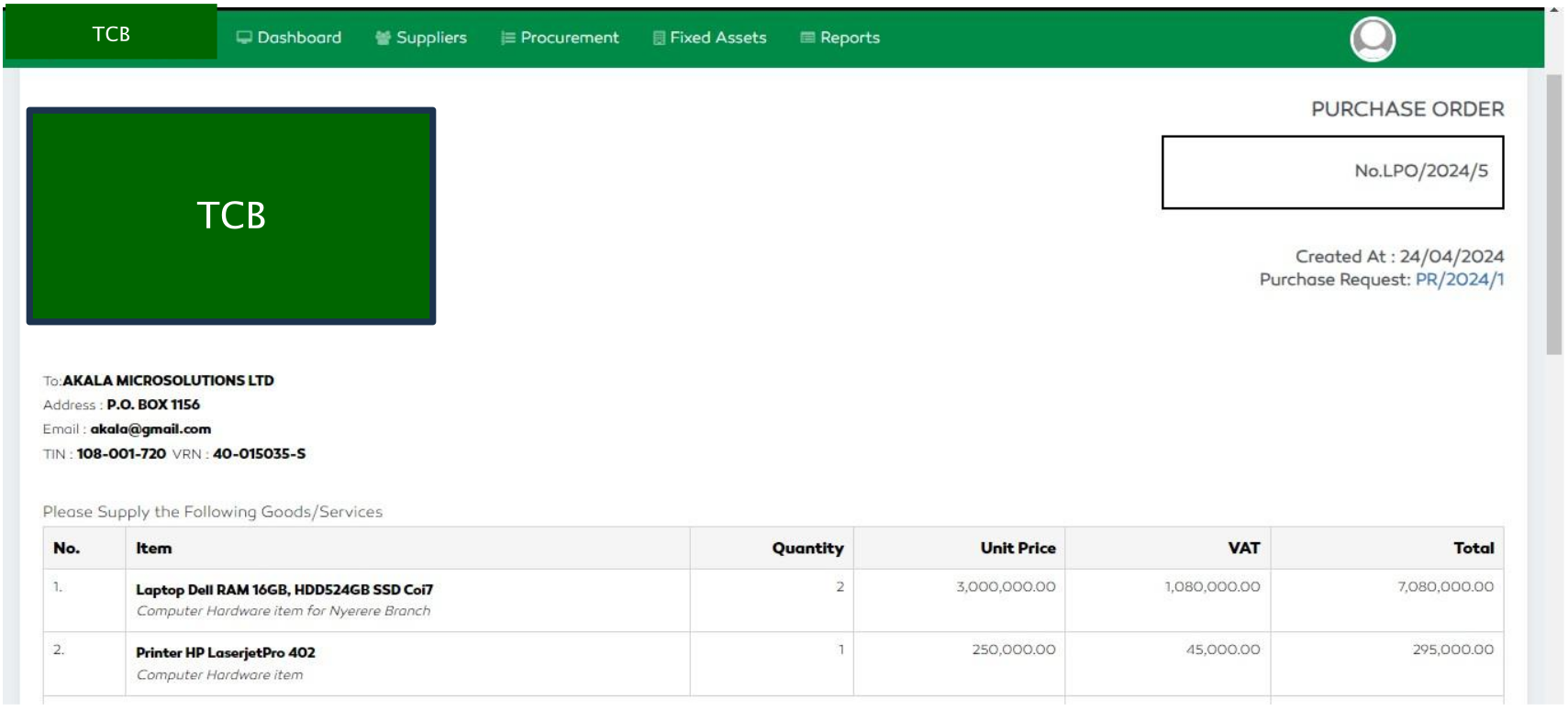
Figure 75: LPO Details
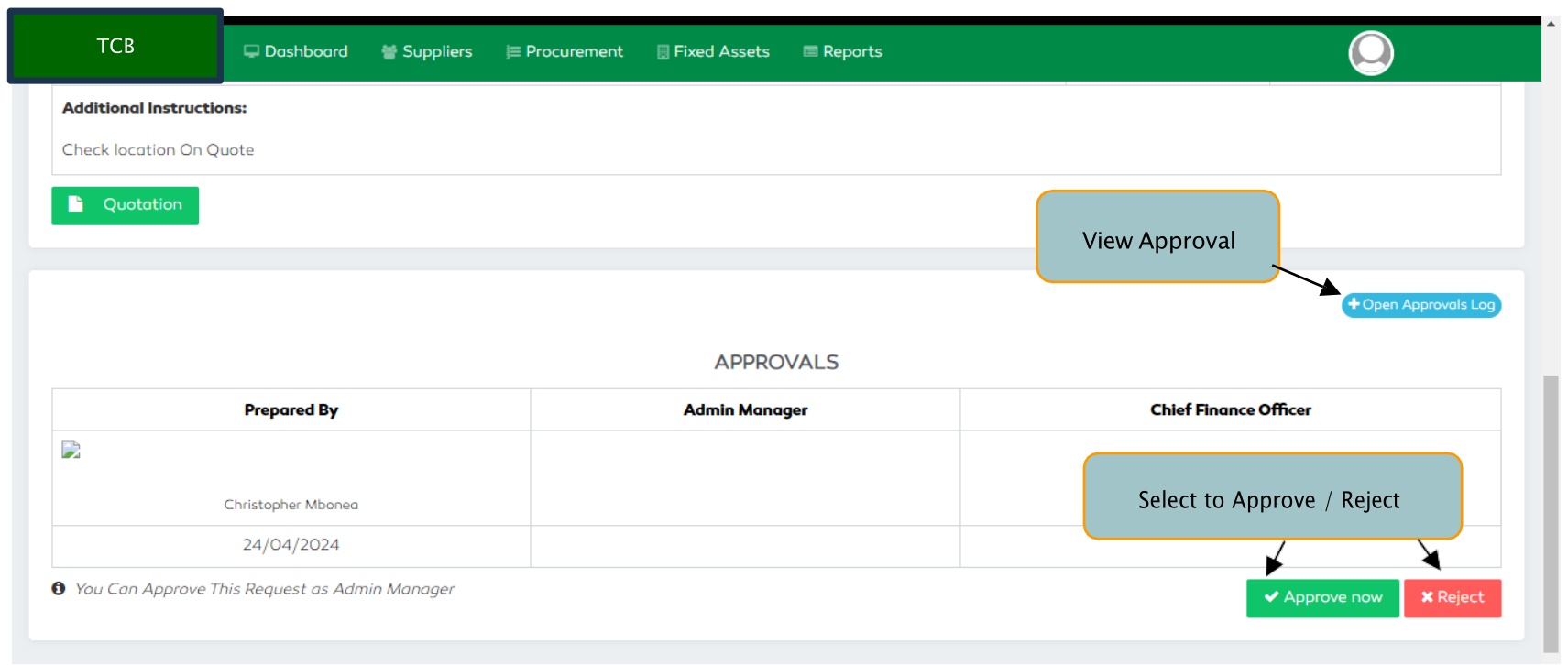
Figure 76: Approving LPO
On selecting the Approve now button, a user will be prompted to confirm the approval before submission.
When confirmed, a section to add comments will be given. A user must add a comment otherwise an error
message will pop up and the approval process will be canceled.
After adding a comment, select the Approve button to approve an LPO.
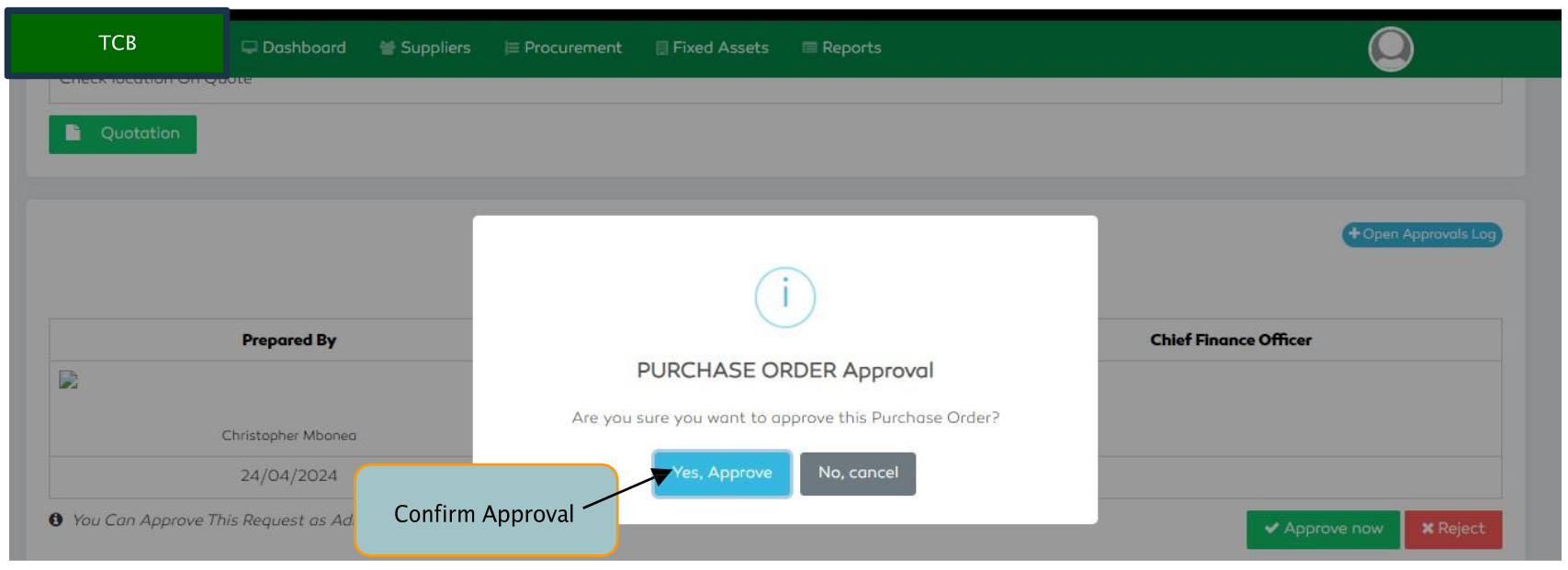
Figure 77: Confirm LPO Approval
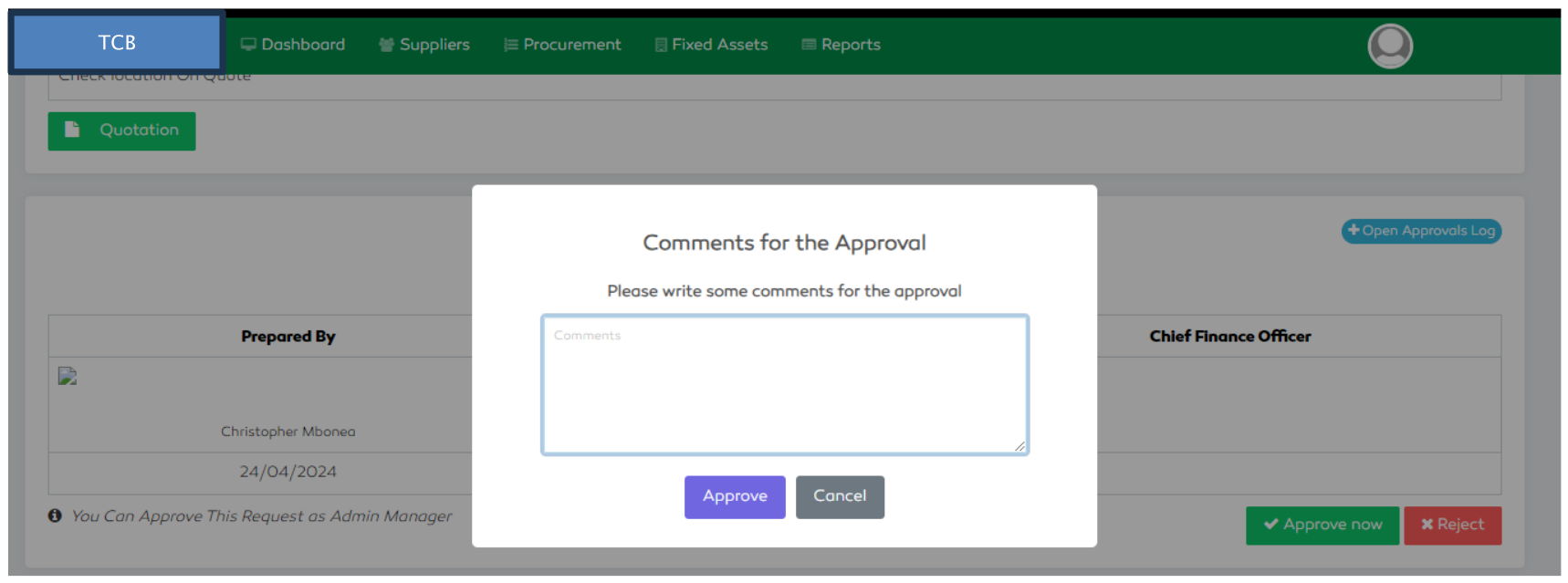
Figure 78: Commenting on LPO Approval
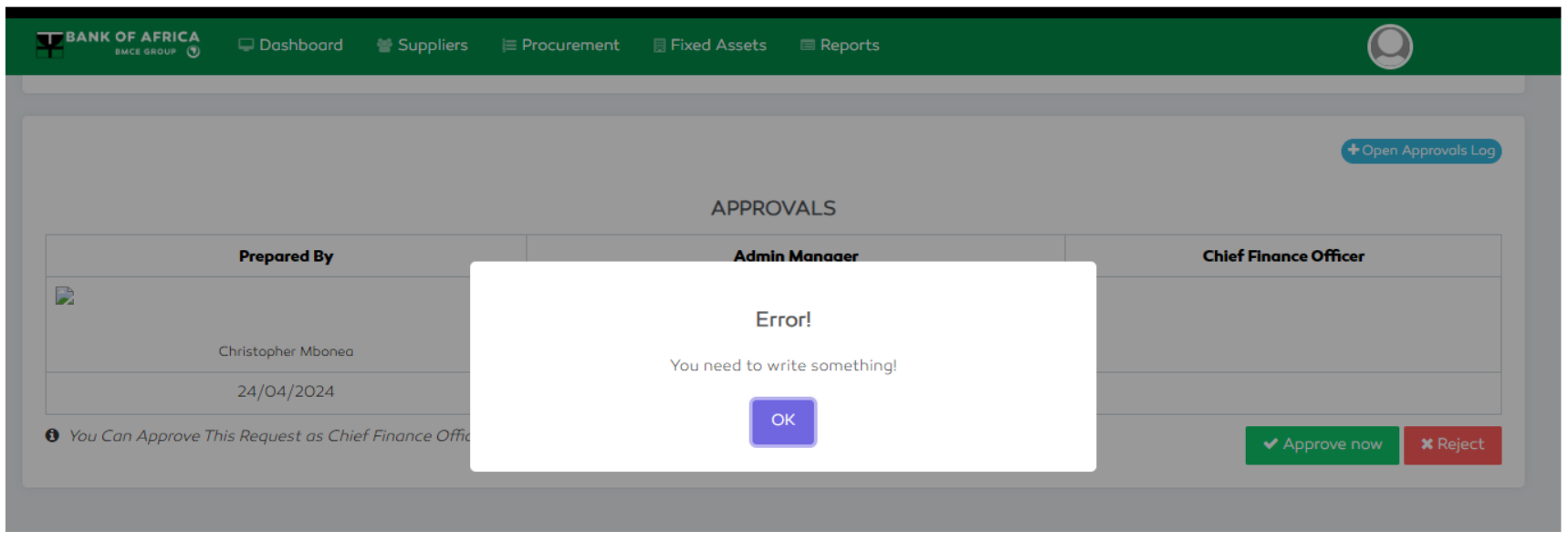
Figure 79: Error message on Submitting LPO without Illustration
Awarding a Contract
To award a contract, a team of not less than five evaluators will go through the tender quotations provided by
various suppliers and select the best vendor as a winner to grant LPO first then award a contract Otherwise, a
user can be granted a direct contract from the system by accessing the Tender Contracts functionality found
in Procurement Contracting module.
A user will then select New Direct Contract functionality to enter the Contract Name, select the contract
Entity, add a Description, select the Start and End Dates, select the Currency and enter Amount, enter the
Service Level Agreement, Business Continuity Plan, specify whether the contract is outsourced or not, enter
the Governance/Termination Clause and upload the Contract Document.
On providing all the needed information, a user will then select the Create Contract functionality to
submit. Approvals will commence after the contract creation for the process completion.
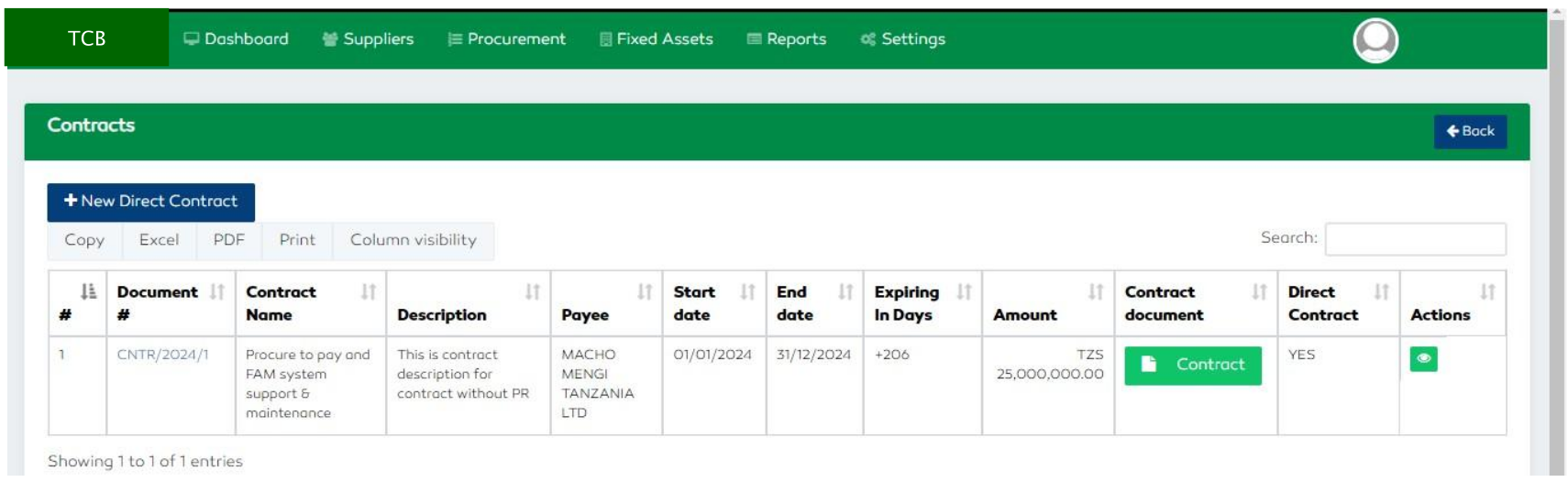
Figure 80: Direct Contract Features

Figure 81: A new Direct Contract Creation Form