Invoice And Payments
The Invoice & Payment functionality provides the invoice and payment related features such as the Direct
Purchase - Pending Payments, Supplier Invoices Verification, Supplier Invoices Payment Approval and a Pay-list
for all payments done.
Only users with permission to the functionalities can access the modules and proceed with verification and payment approval procedures.
Supplier Invoices Verification
A supplier submits the billing and invoicing details through the supplier portal for the specific LPO award. An
administrator user can access submitted invoices from the Supplier Invoices - Verification functionality. A list
of all submitted invoices with the details will be displayed when a user selects the feature in order to take a
review and confirm if all the details provided are correct.
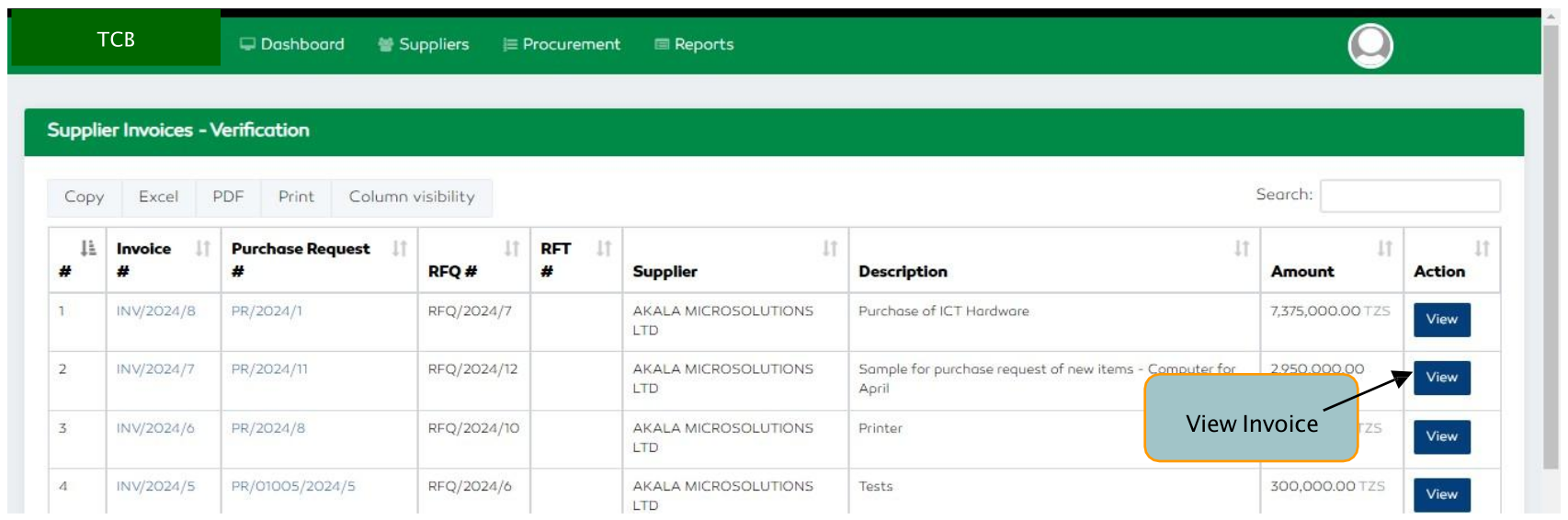
Figure 82: Submitted Invoices
For a detailed description and also verification process of a single invoice related to a specific PR and RFQ, a
user clicks the View functionality. The Invoice details, Supplier details, items being procured, supplier
attachments, supplier bank details, suspense account details, asset addition section and the approval section
are all displayed to the user.
A user is capable of adding any forgotten attachments from the supplier by accessing the attachments section.
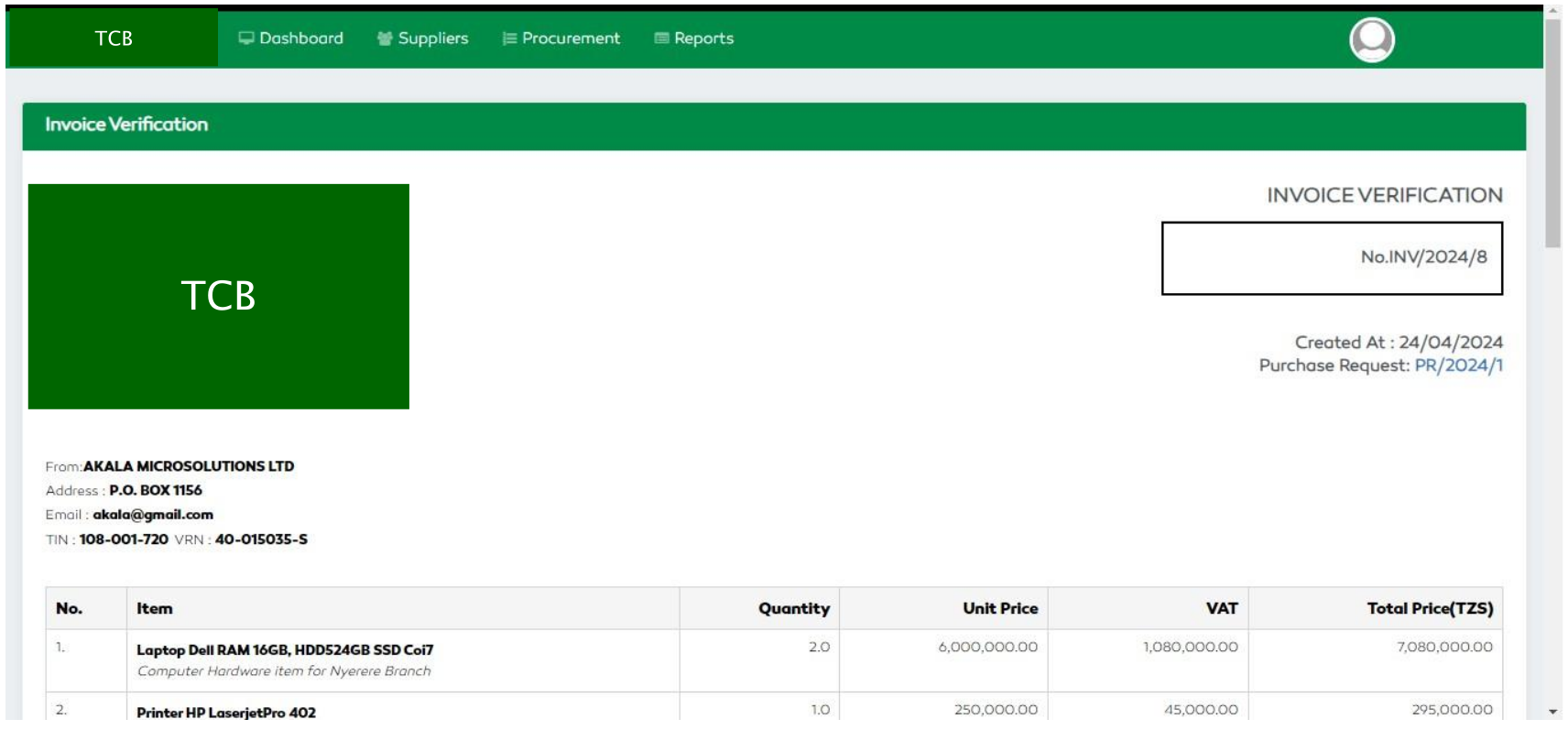
Figure 83: Invoice Features
Updating Bank Account Details
A supplier submits the payment bank details during the invoicing and billing activity from the supplier portal. The
selected bank details from the supplier portal is the one displayed in the invoice verification section. An
administrator user can update the bank details only when a supplier gives a confirmation to do so.
From the Supplier Bank Details category on the displayed form, a user is capable of updating the bank
account details in case of addition of any new bank accounts or an error in the previous ones.
For a new account, a user will select the bank account whether it's a TCB or Other account. If it's a TCB
account, the user will fill in the account number and account name.
For other accounts, the user will add the Swift Code, IBAN and Bank Address of the external account. After
filling all the information. The user will click the “Update Account Details” button to save.
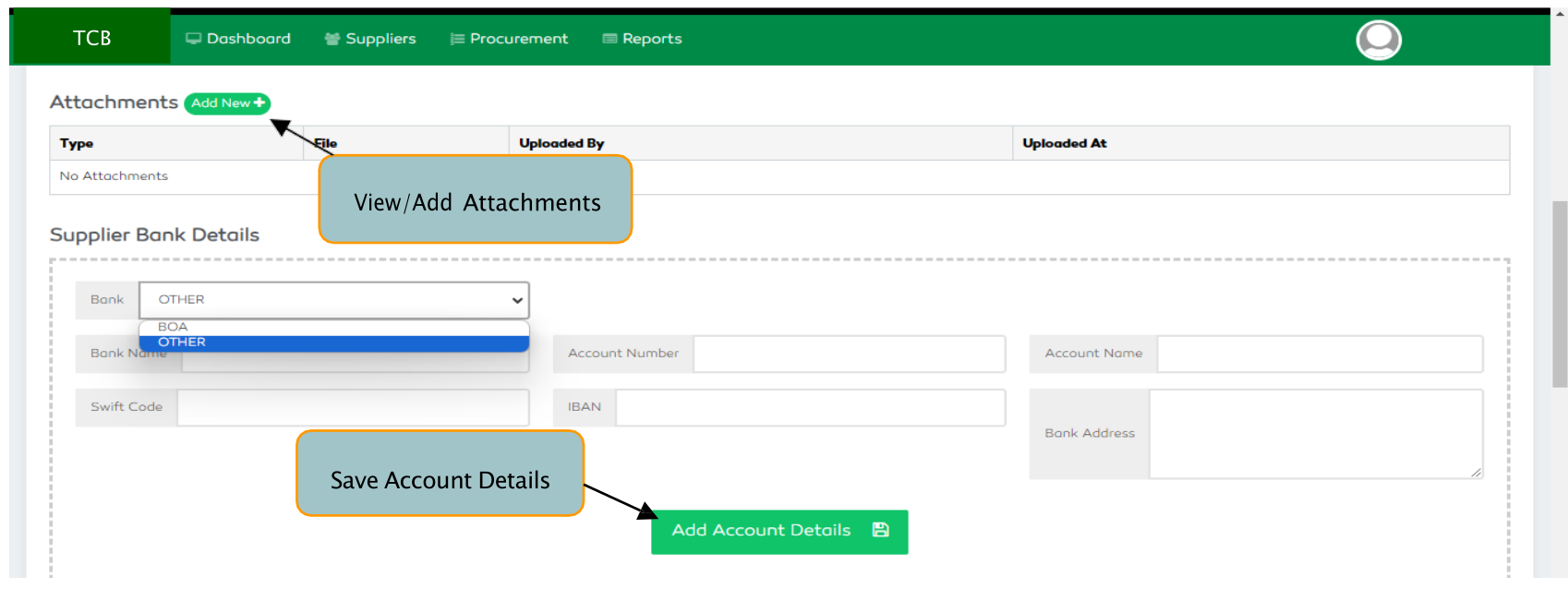
Figure 84: Verifying Invoice Details
Selecting Suspense Account
If a supplier submits account details different from TCB accounts, the administrator user will select the suspense
account to be used for that transaction depending on the currency selected by the supplier. From the Suspense Account section, select the suspense account to be used as per the currency stated by the supplier then click
the Save button to submit. The saved details will be displayed to the finance section during payment
approval.
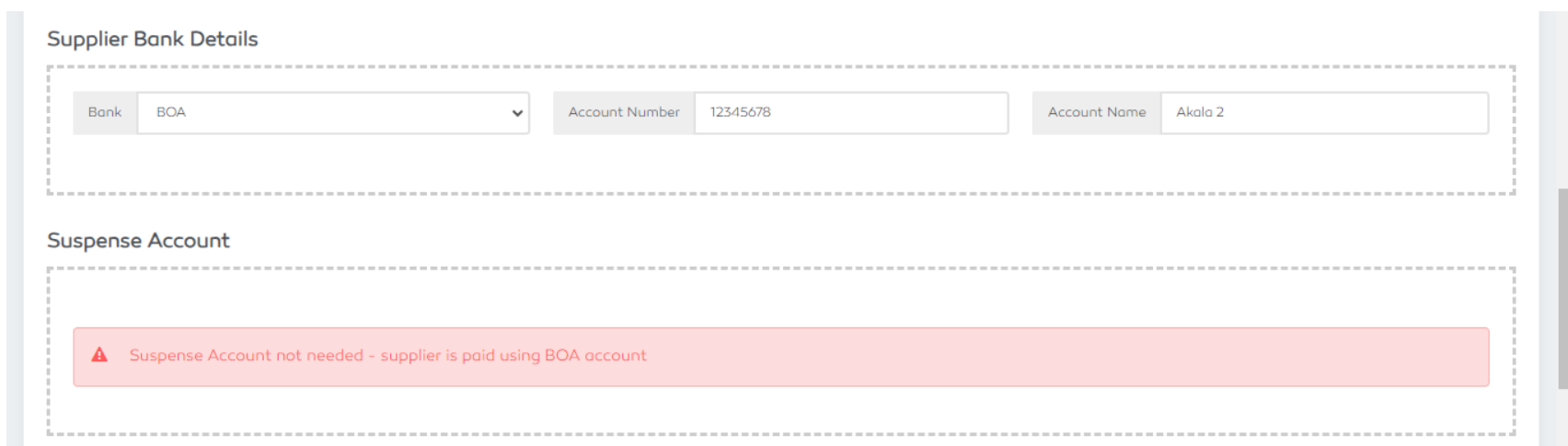
Figure 85: An Alert to restrict Suspense Account Selection

Figure 86: Suspense Account Selection
Asset / Inventory Addition
Before proceeding with approvals, a user will be prompted to enter the new asset or inventory item into the register. Once an asset / inventory is added into the register, a user can now access the approval section and complete the verification process.
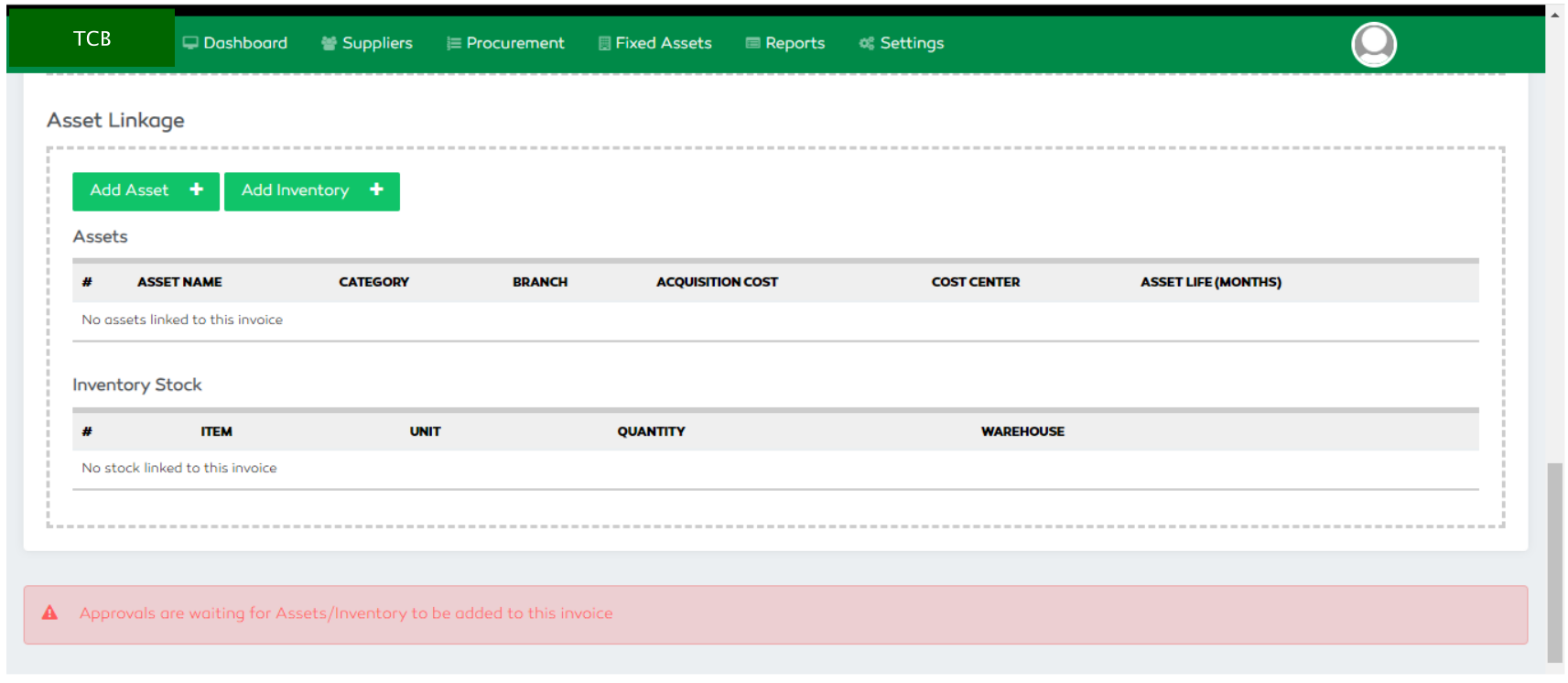
Figure 87: Asset / Inventory Item Addition
To view the asset / inventory addition processes, check the FAM and Inventory Management Chapter in this document.
Invoice Approval
To finally complete the verification process, a user has to select the Approve now button to approve or
Reject button to reject the submitted invoice.
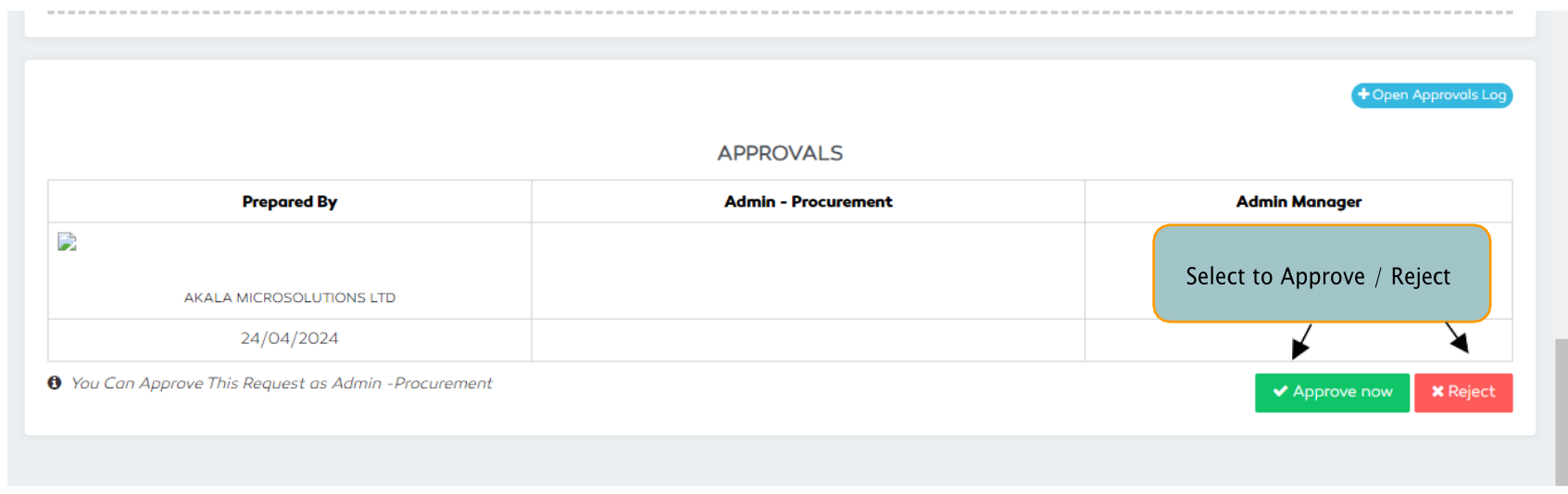
Figure 88: Approving an Invoice after Verification
On selecting the Approve now button, a user will be prompted to confirm the approval before submission.
When confirmed, a section to add comments will be given. A user must add a comment otherwise an error
message will pop up and the approval process will be canceled.
After adding a comment, select the Approve button to approve a Payment Invoice.
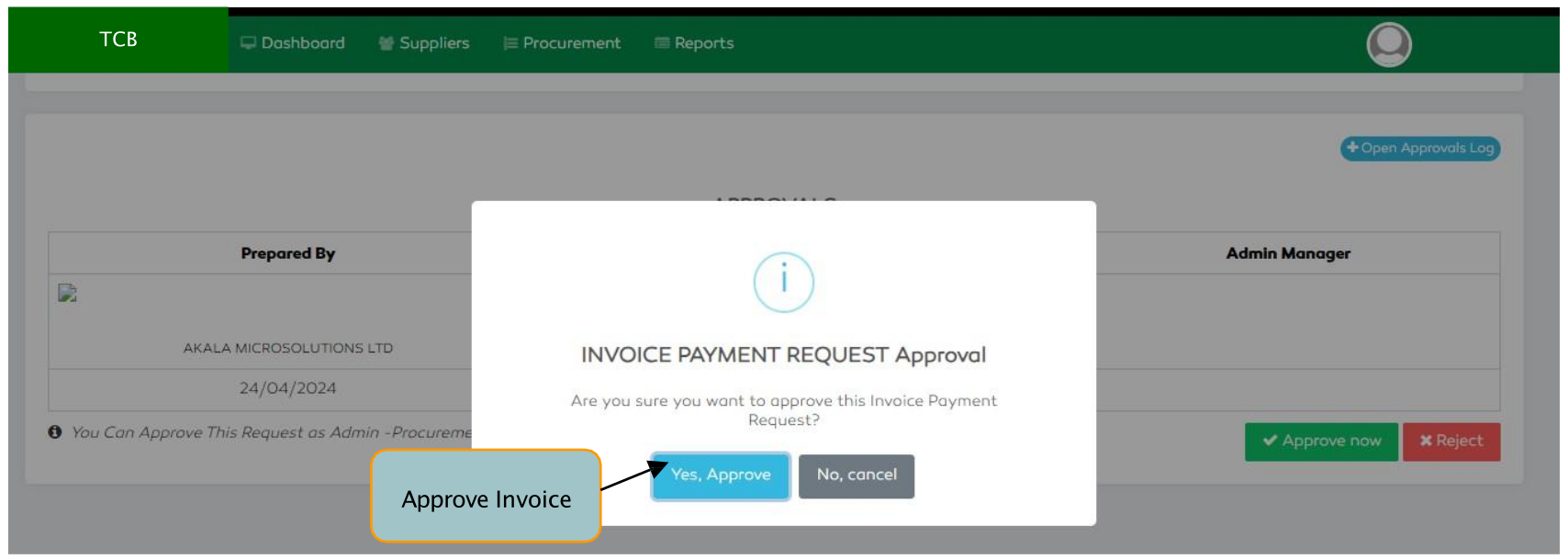
Figure 89: Invoice Approval Confirmation