Handling Supplier Quotations
The suppliers or vendors who are interested or were invited to view the published tenders send their quotations
through the Supplier e-Procurement Portal. After submitting all the required information and documents
stated, an administrator user can view all the information from the Supplier Quotes functionality in the e-
Procurement system.
The user will either choose to go through the received quotations or received tenders.
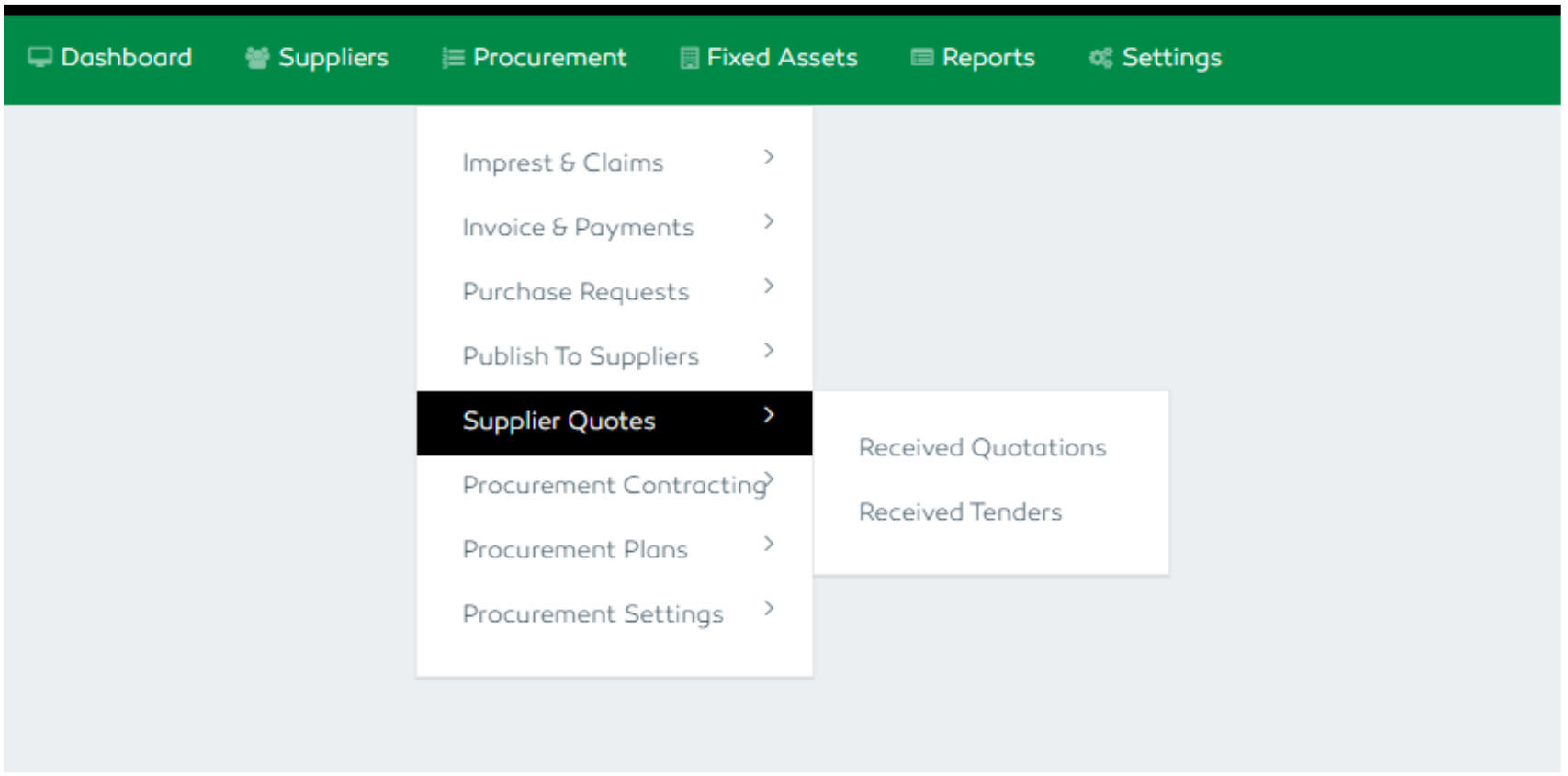
Figure 60: Supplier Quotes Module
Received Quotations
The received quotations fall under the “Received Quotations” functionality in the system. An administrator user is capable of viewing all the quotations, setting an opening date, adding the evaluation committee / procurement committee members, performing evaluation if the user is declared as an evaluator, viewing evaluation remarks and scores for an already evaluated quotation.
Every quotation is referenced to its specific Purchase Request Number.
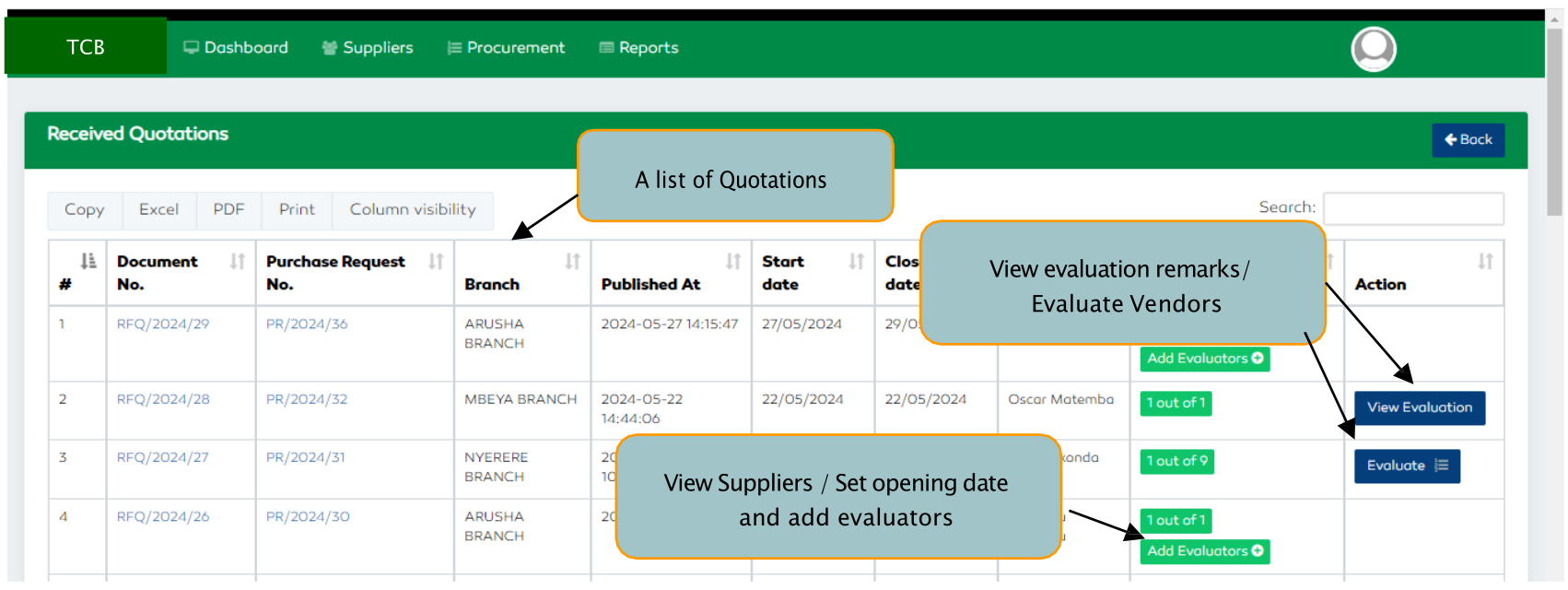
Figure 61: Quotations Section Features
The number of evaluators for a quotation must be at least 3 and above.
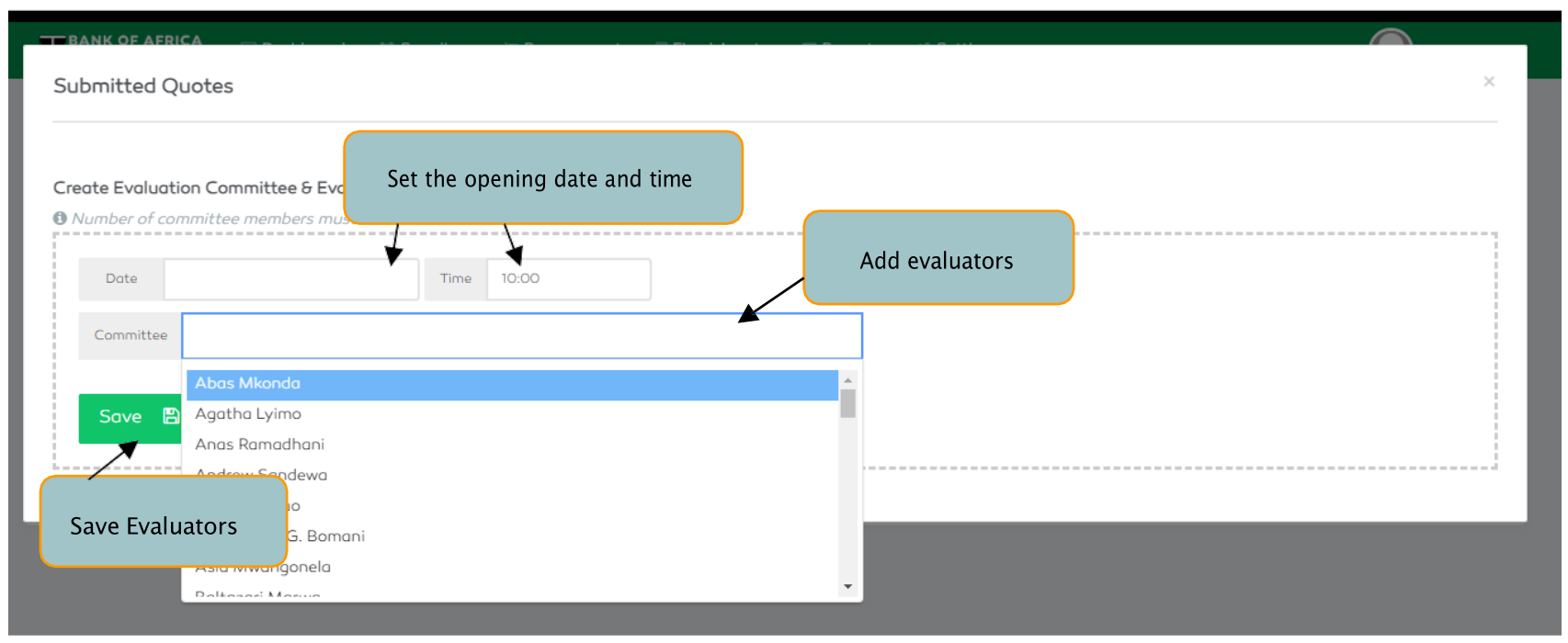
Figure 62: Adding Evaluators
Recreating Evaluation Plan
A user can change or delete evaluators before the evaluation date and time by selecting the Recreate Evaluation Plan functionality. Once any evaluator starts the evaluation process, the feature can’t be
accessed anymore.
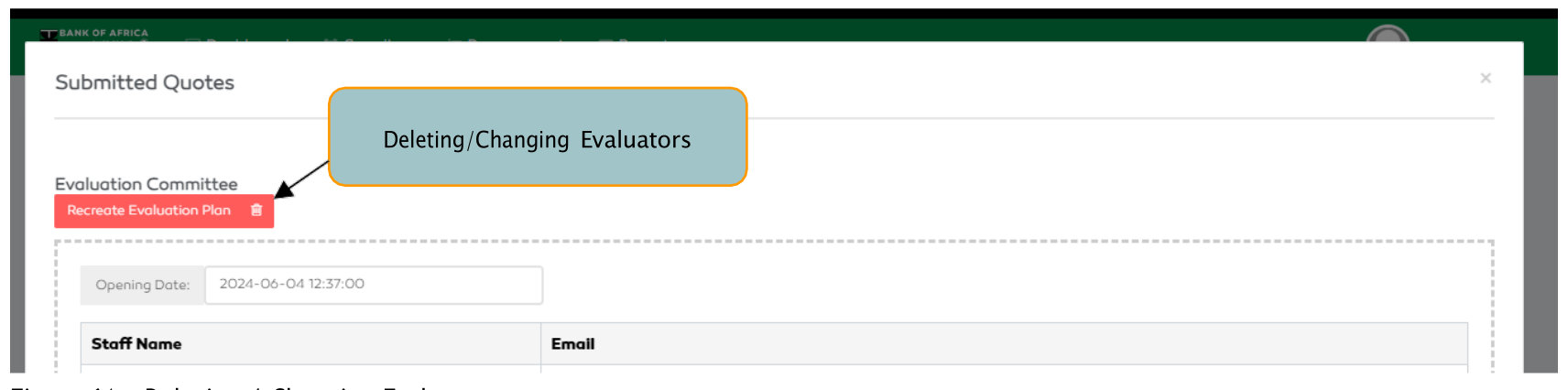
Figure 63: Deleting / Changing Evaluators
Received Tenders
The received tenders fall under the Received Tenders functionality in the system. An administrator user is
capable of viewing all the tenders, setting an opening date, adding the evaluation committee / procurement
committee members, performing evaluation if the user is declared as an evaluator, viewing evaluation remarks
and scores for an already evaluated quotation.
Every tender is referenced to its specific Purchase Request Number. The number of evaluators for a tender must be at least 5 or above.
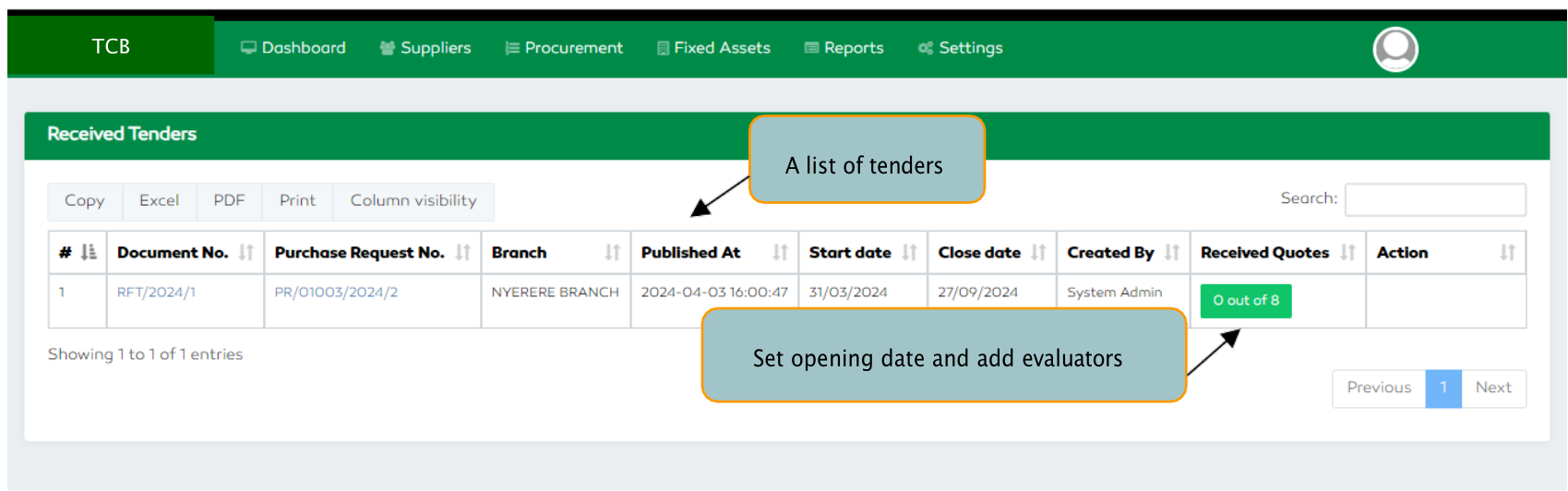
Figure 64: Managing Received Tenders
Tenders and Quotations Evaluations
The evaluation process occurs on a very specific set opening date. Prior to the tender opening date, nobody is
capable of opening the quotation or tender submitted by a supplier.
Only the pre-defined evaluators can have access to the evaluation process. A list of evaluators can be found
from the Received quotations or Received Tenders functionalities. The evaluators have to provide their
evaluation results by giving remarks and scores to each bid submitted in accordance with the evaluation criteria
provided.
On completion of evaluation by each evaluator, the system sums up and displays the overall score for the evaluated bids.
Quotation Evaluation Description:
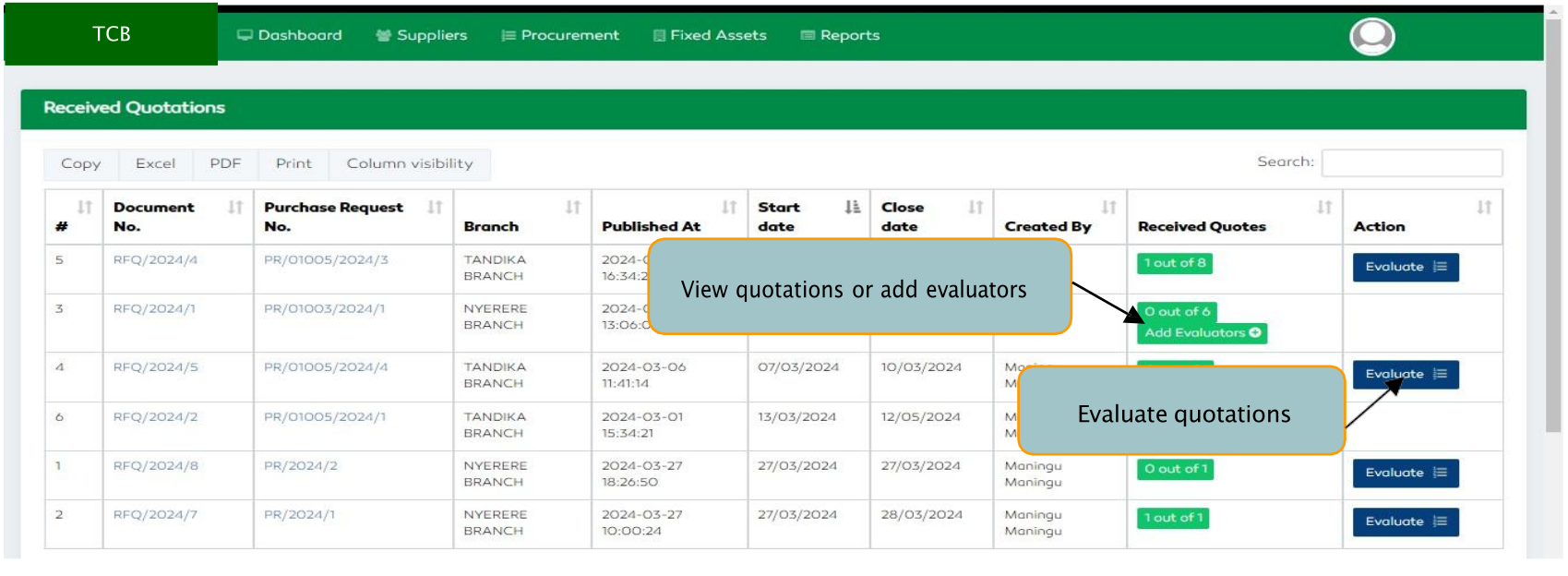
Figure 65: Received Quotations
On clicking the evaluation functionality, the evaluation form displays the RFQ and PR details, Invited Suppliers, RFQ Items, RFQ evaluation committee and an evaluation section.
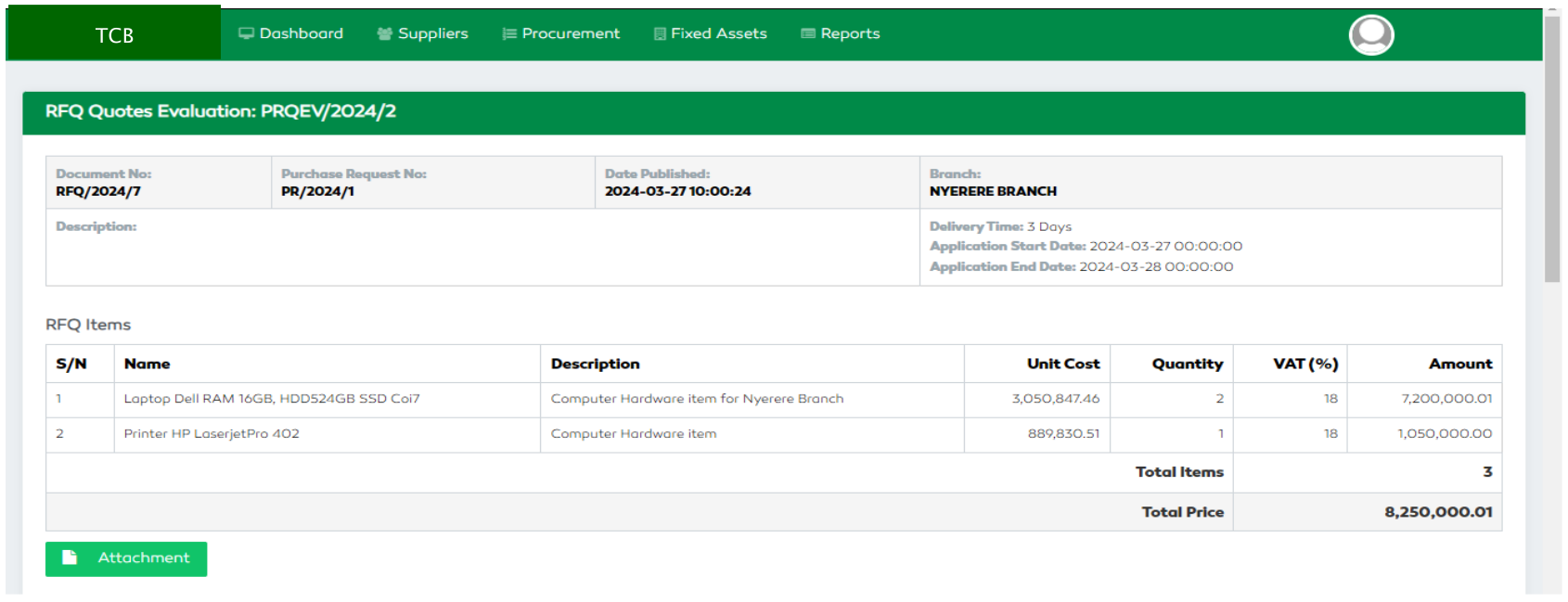
Figure 66: RFQ Evaluation Form
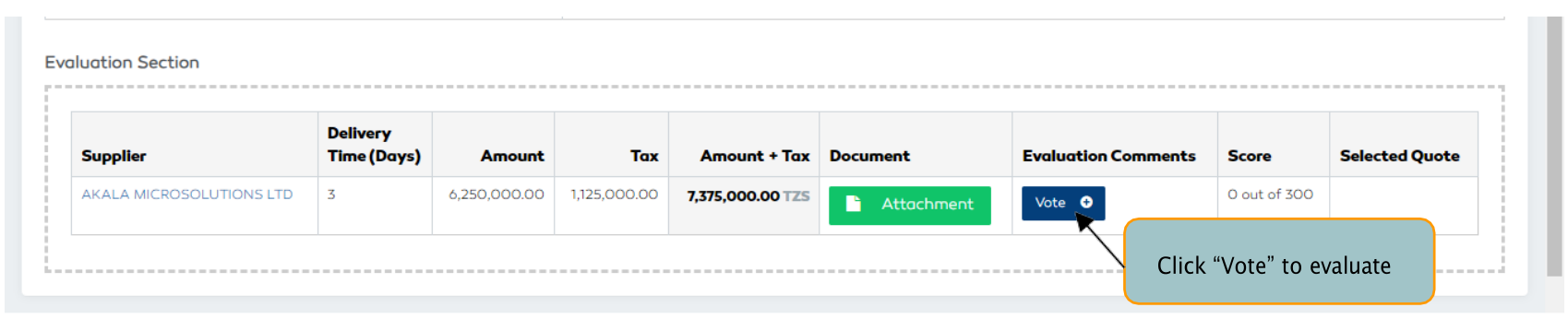
Figure 67: Evaluation Section
To proceed with evaluation, an evaluator clicks the Vote functionality provided in the evaluation
section.
A form containing the Supplier details, unit price of the items, total amount exclusive and inclusive of VAT and an evaluation section to give remarks and scores is provided to the evaluator. An evaluator has to submit the evaluation results by clicking the “Submit” button at the bottom of the evaluation form.
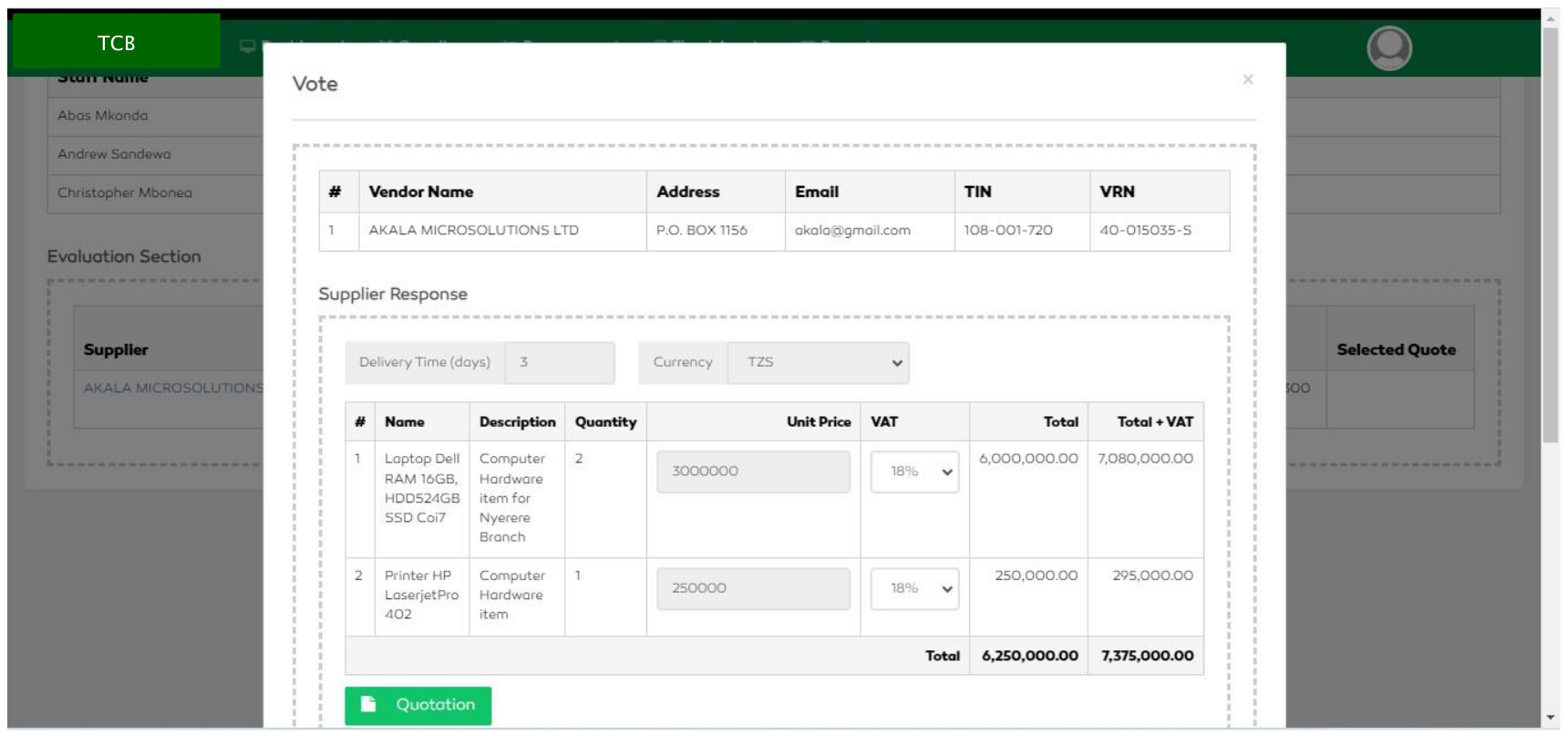
Figure 68: Quotation Details in Evaluation Form
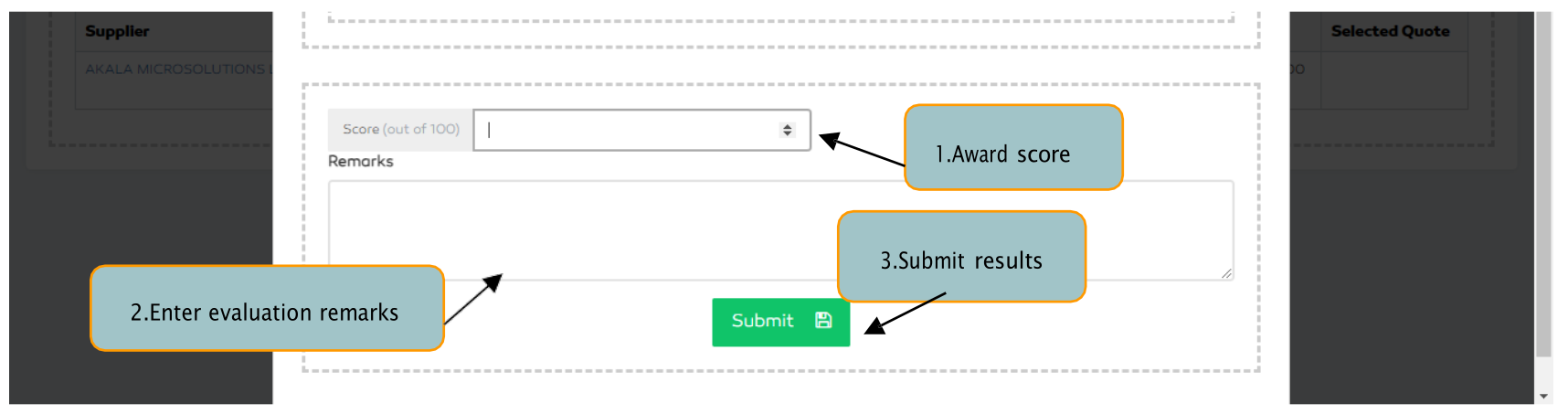
Figure 69: Evaluation Form
Awarding a Winner
On completion of the evaluation process by all the defined evaluators, a winner has to be selected among the submitted quotations or tenders from the prequalified suppliers. The administrator user responsible for awarding the winner will award the winner in reference to the evaluation results from the evaluation committee.
From the evaluation section, click the Select as Winner functionality to pick your winner.
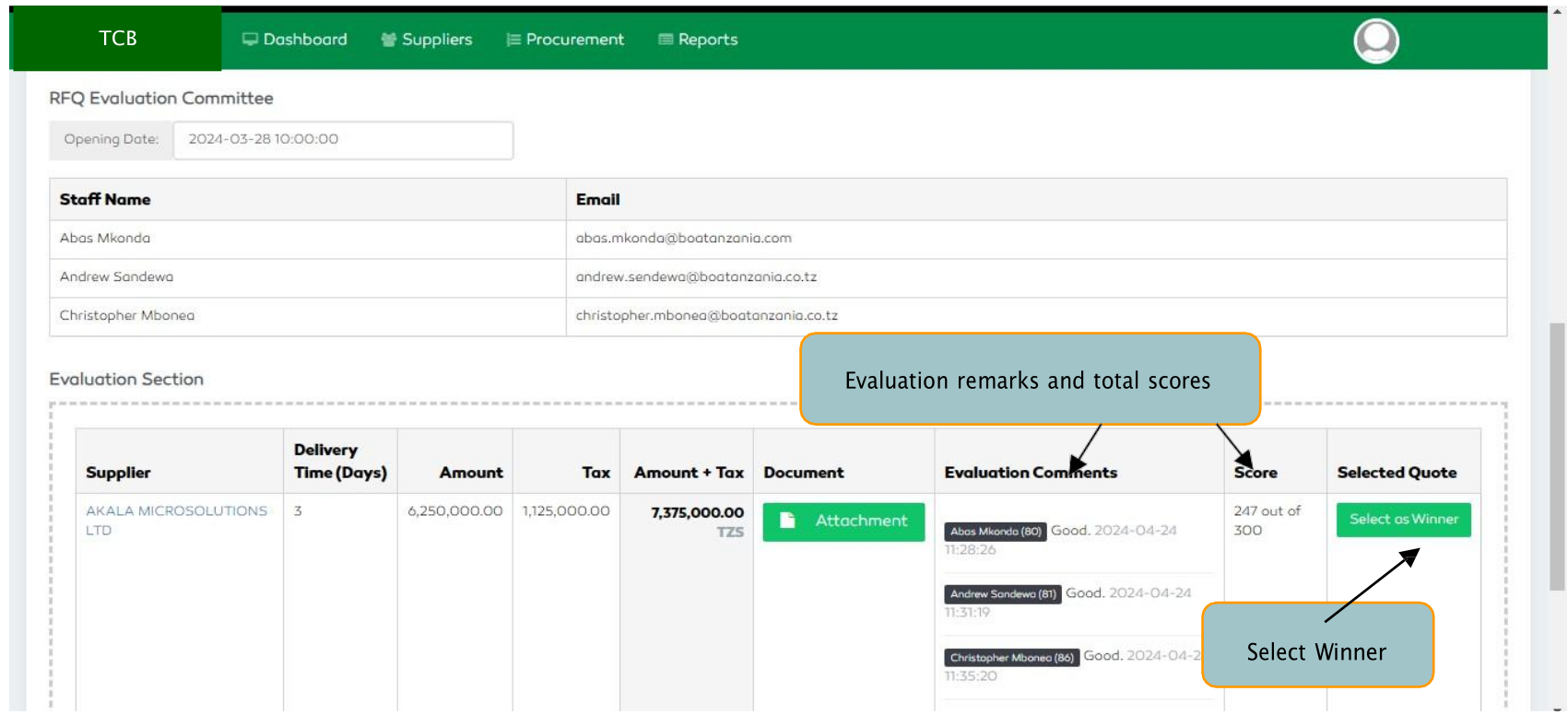
Figure 70: Selecting a Winner
A form to give further description on the winner selection criteria and more delivery details will pop up just after selecting the winner.
After filling the required information, the user clicks the Mark as Winner & Generate LPO button to
approve the selected winner.
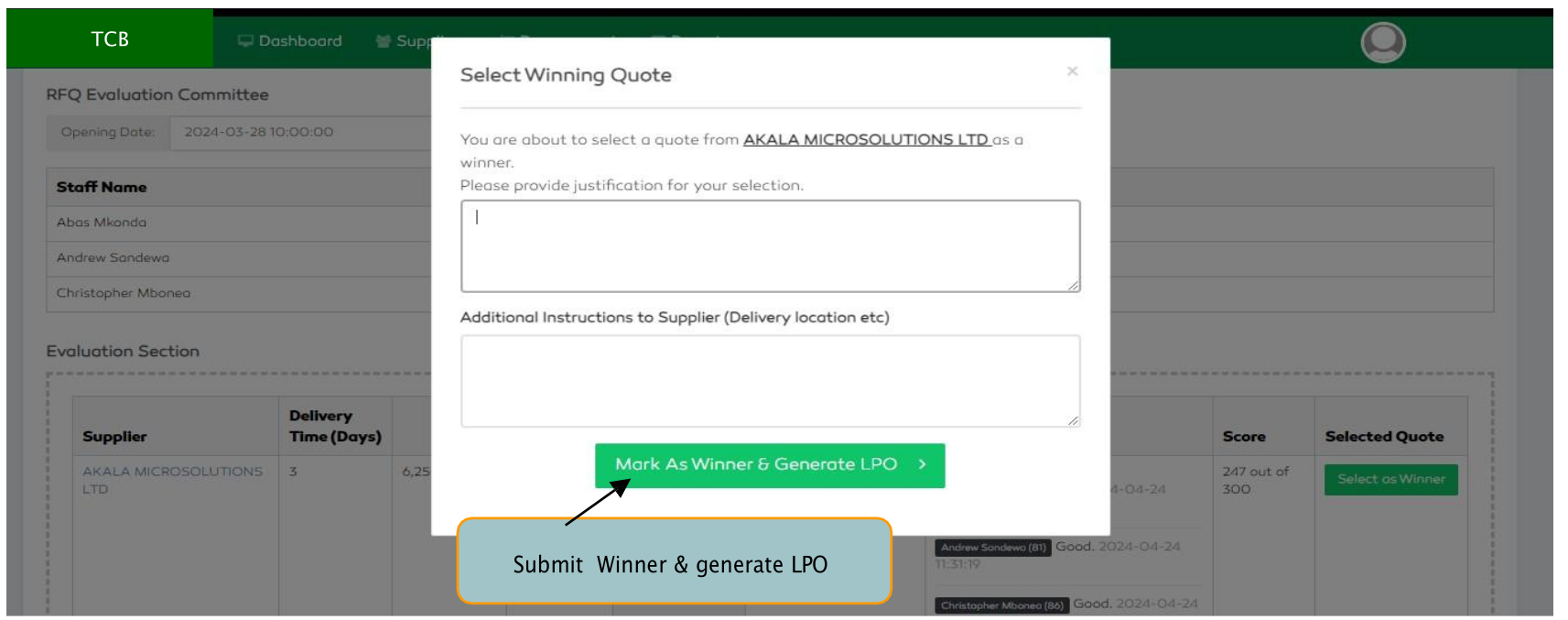
Figure 71: Select Winner & Generate LPO
The Awarded winner will then be forwarded to the Tender Committee for final approval. An LPO or a Contract will be created if the tender committee approves the winner, contrariwise, a rejection will reverse the process to the evaluation committee for further consideration and send it back to the Tender Committee.